
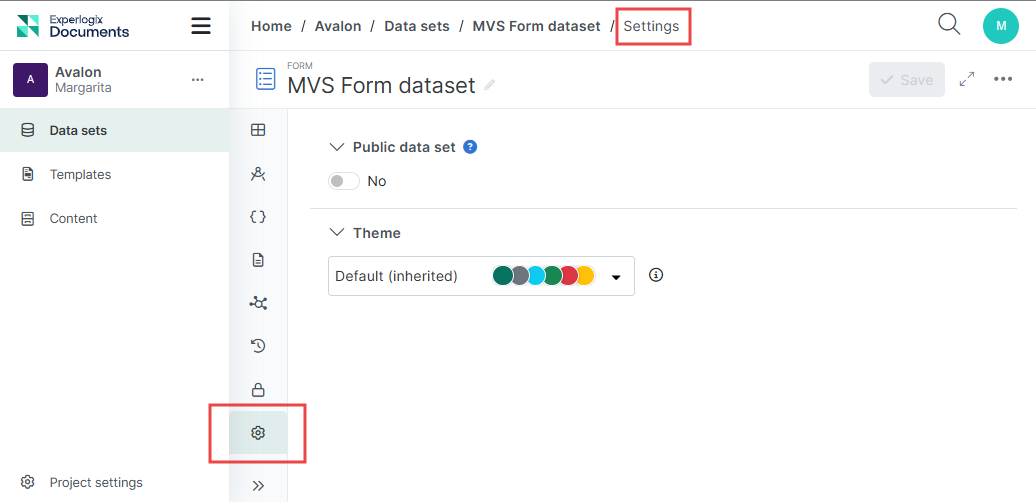
The Settings tab provides a place for managing Web Web Form access (private or public) and Web Web Form themes.
Public Data Sets
By default, Data Sets you create are private and not accessible to non-authenticated users. To support your clients completing an anonymous Web Form, you must ensure the Public Data Set setting for your data set is toggled to Yes.
Example
Shelly in Benefits Management needs to get the updated benefits selections for everyone in the company before the end of Q3. She can create a custom Web Form with field selections and then share that Web Form with all employees. If everyone in the company is authenticated to use Experlogix Documents, she can keep her Web Form Data Set private. However, if not everyone who needs to complete the Web Form is authenticated, she'll need to make Web Form Data Set public to allow non-authenticated users to complete the Web Form.
Nested Web Form Privacy Compatibility
To prevent inconsistent behavior and access issues, it is highly recommended that both the parent Web Form and its hosting context use identical privacy settings (Public/Public or Private/Private).
Validation Rules for Nested Web Forms
To ensure data security, the system applies specific validation rules:
-
Private Parent Web Forms: Can include both public and private nested Web Forms.
-
Public Parent Web Forms: If a private Web Form is added inside a public parent Web Form, the nested Web Form will not render for end users.
To prevent this, the Web Form builder applies validation and guidance logic when adding a Nested Web Form component:
-
Only compatible public Web Forms are available for selection.
-
Private Web Forms are automatically filtered out.
-
UI guidance and notifications explain why some Web Forms are unavailable.
This helps prevent invalid configurations and ensures nested Web Forms render correctly in public Web Forms.
-
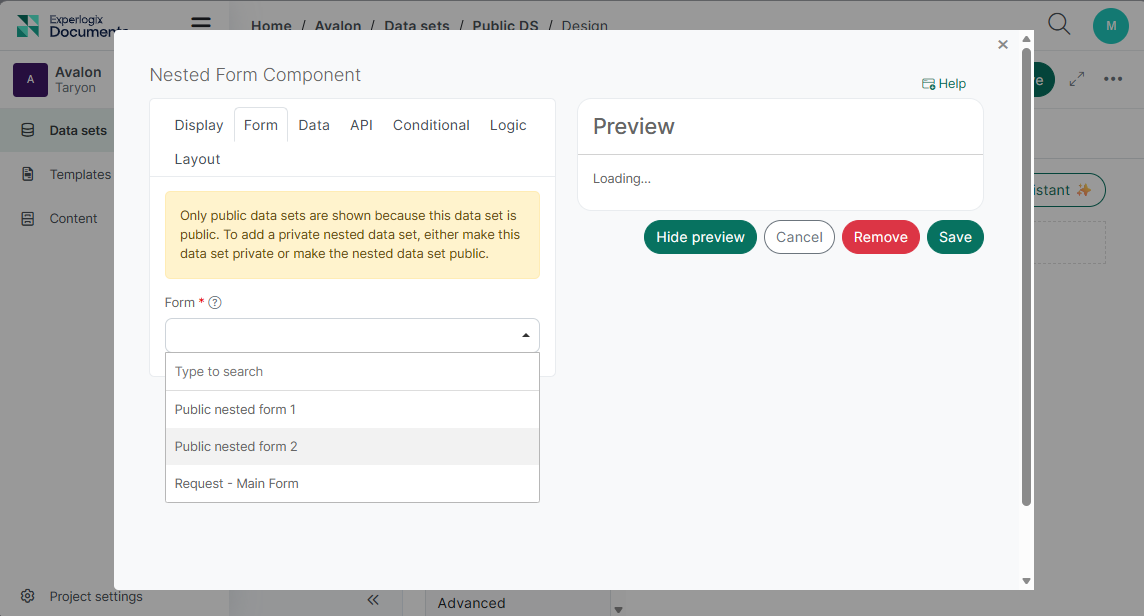
If the Parent Web Form was created before Documents Automation version 1.0.0-preview.28 (Experlogix Documents Release Notes 1.0.0-preview.28), private Web Forms will still appear in the list of available Web Forms. Please review and adjust privacy settings to ensure consistency.
Privacy Changes
If you change an existing private parent Web Form to Public while it contains private nested Web Forms, the system will display a warning message to help prevent configuration conflicts and rendering issues.
"Privacy mismatch detected. One or more nested data sets are private. This will prevent them from displaying to end users when rendered publicly. Please review and adjust the privacy settings as needed."
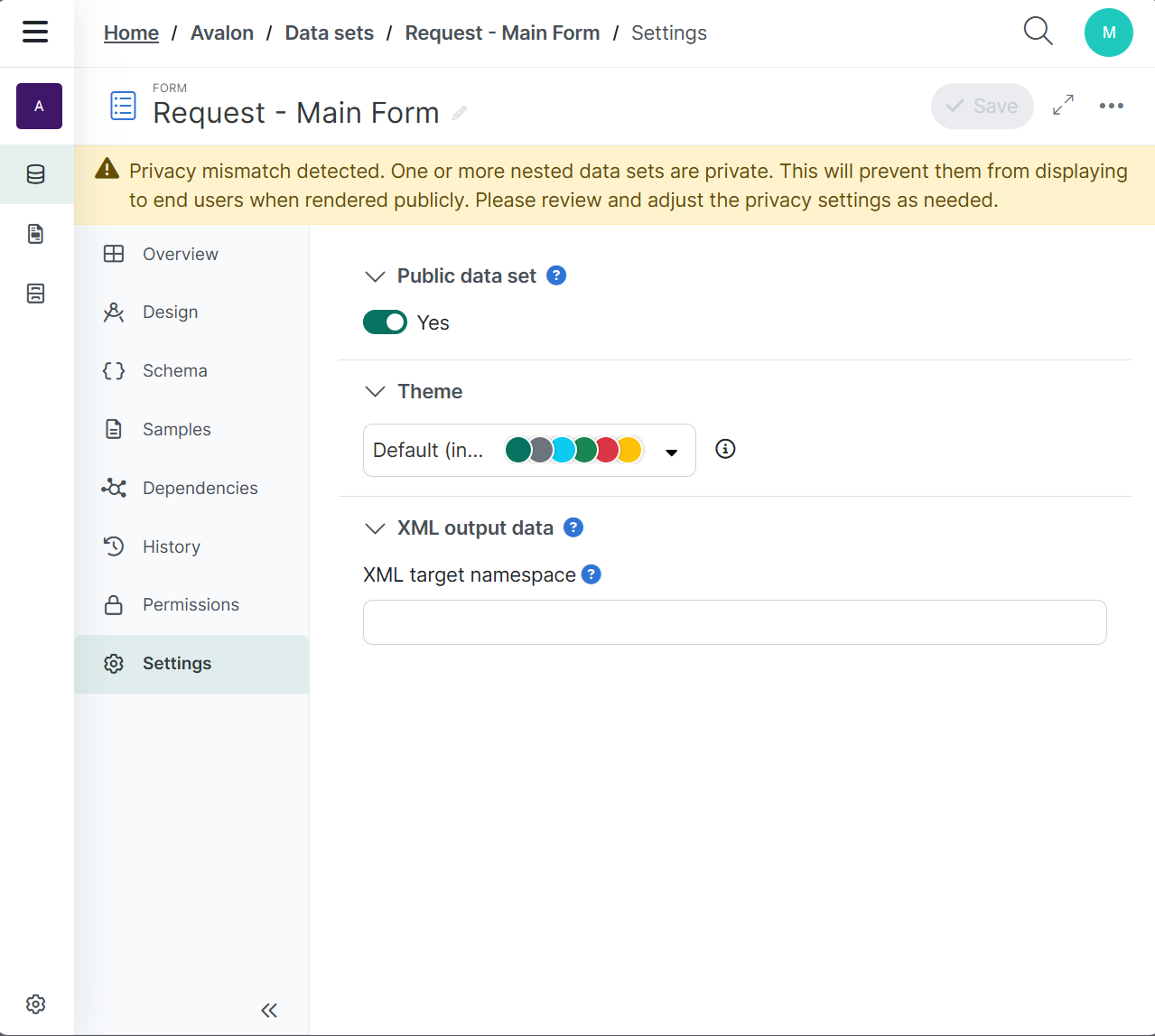
Recommended Action: Adjust the privacy settings of the parent or nested Web Form(s) to align with Validation Rules for Nested Web Forms.
Themes
Themes for Web Form data sets allow users to assign a specific theme to an individual Web Form, overriding the theme defined in the Project Settings. This provides the flexibility to control the desired look and feel for each Web Form independently.
This is especially efficient for organizations operating multiple brands or product lines. Web Form designers can simply select the theme that aligns with the required branding from a list of available themes, applying it quickly and consistently without restyling every Web Form individually.
Themes management
Themes must be added to your project within the project settings before they are available in the Web Form Data Set settings. See Project Settings Themes Tab for detailed instructions.
Licensing
To update and manage Web Form themes, make sure your license includes Themes and Web Form Themes for Advanced Web Forms. For more details, see Licensing.
Permissions
Both "Read project themes" and "Write data sets" permissions are required to update a Web Form theme. To understand how permissions work across all types of items and how to manage them effectively, see Permissions and Groups.
View and Change Web Form themes
You can manage a Web Form theme in the Web Form Data Set > Settings tab.
In this view, you will see the theme currently applied to the Web Form. If no theme has been explicitly selected, the Web Form automatically uses the current theme, which is inherited from the project settings.
To change a Web Form theme:
-
Go to Web Form Settings.
-
Select a desired theme from the drop-down list.
-
Select Save to apply the change.
Changing a theme creates an Update entry in the Web Form’s history.
If the theme applied to the Web Form is deleted, the Web Form reverts to the project’s current theme, or to the system theme if the current theme is deleted.
Theme Inheritance and Transfer Rules
|
Case |
Description |
|---|---|
|
Nested Web Form themes |
Web Forms inherit the parent Web Form’s theme when added as nested Web Forms. However, when used as standalone Web Forms, they retain their own theme. |
|
Cloning a Web Form |
When cloning a Web Form, the original Web Form’s theme is retained. |