
The Experlogix Documents app provides an AI assistant designed to streamline key workflows, such as creating and updating Form data sets and translating documents. It understands natural-language prompts and generates previews you can review and apply.
Key AI Functionality
Data Sets Form Builder AI Assistant
-
Natural Language Prompts: You can describe what you want to achieve, and the AI will help you build the form.
-
Form Data Set Suggestions: The AI suggests form components and configurations based on your prompts.
-
Efficiency: It can significantly reduce form-building time from over an hour to just a few minutes, depending on your use case.
AI Document Translation in Content Manager
-
Translation Assistance: The AI assists with translating documents directly within the Content Manager, making it easier to manage multilingual content.
Getting Started with AI in Experlogix Documents
To start using the AI services in Experlogix Documents, open the Data Set > Design tab to access the AI assistant for Form data sets, or navigate to Content Manager for AI document translation.
AI Assistant for Form Data Sets
The AI assistant for Forms in Experlogix Documents allows you to design Form data sets interactively through a chat interface. This simplifies building forms by generating the necessary HTML code and providing an easy way to apply it directly in the Data Sets Design Tab.
To utilize the AI assistant for building form data sets:
-
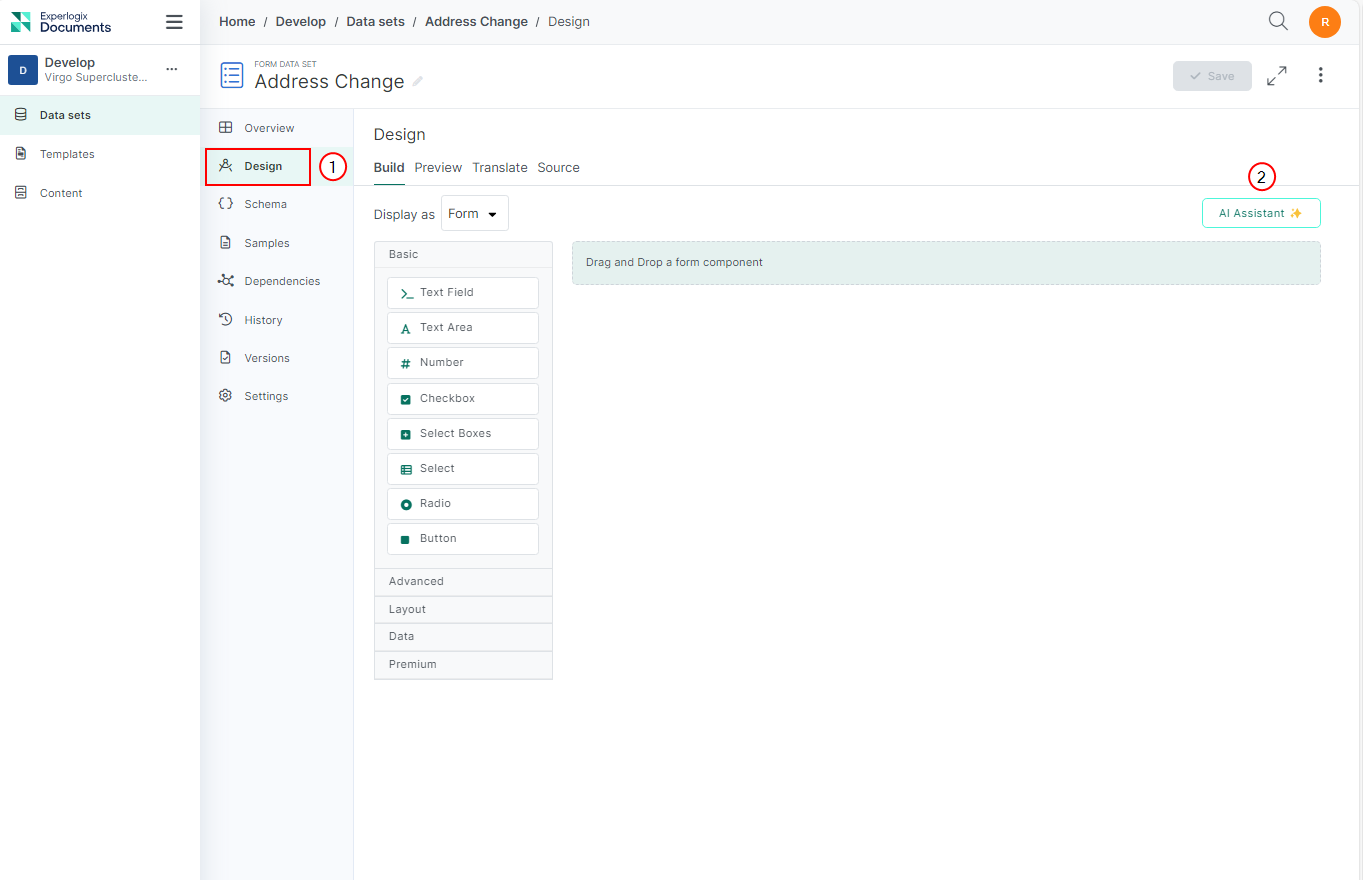
Navigate to the Data Sets Design Tab in Experlogix Documents.
-
Select AI Assistant.
The AI Assistant displays.
Design Forms Data Sets Using AI Assistant
Use the AI Assistant chat in the Data Sets Design Tab to enter prompts and get guidance.
Example Prompts:
-
“Build an event registration form.”
-
“Make all fields on this form required.”
-
“Add an Address - State dropdown field with all U.S. states as options.”
-
“Add a series of checkbox fields with common dietary restrictions and show an ‘other’ option. When selected, add a text field to specify.”
-
“Show the different sections of the form as tabs.”
-
In the AI Assistant, enter your prompt and select Submit.
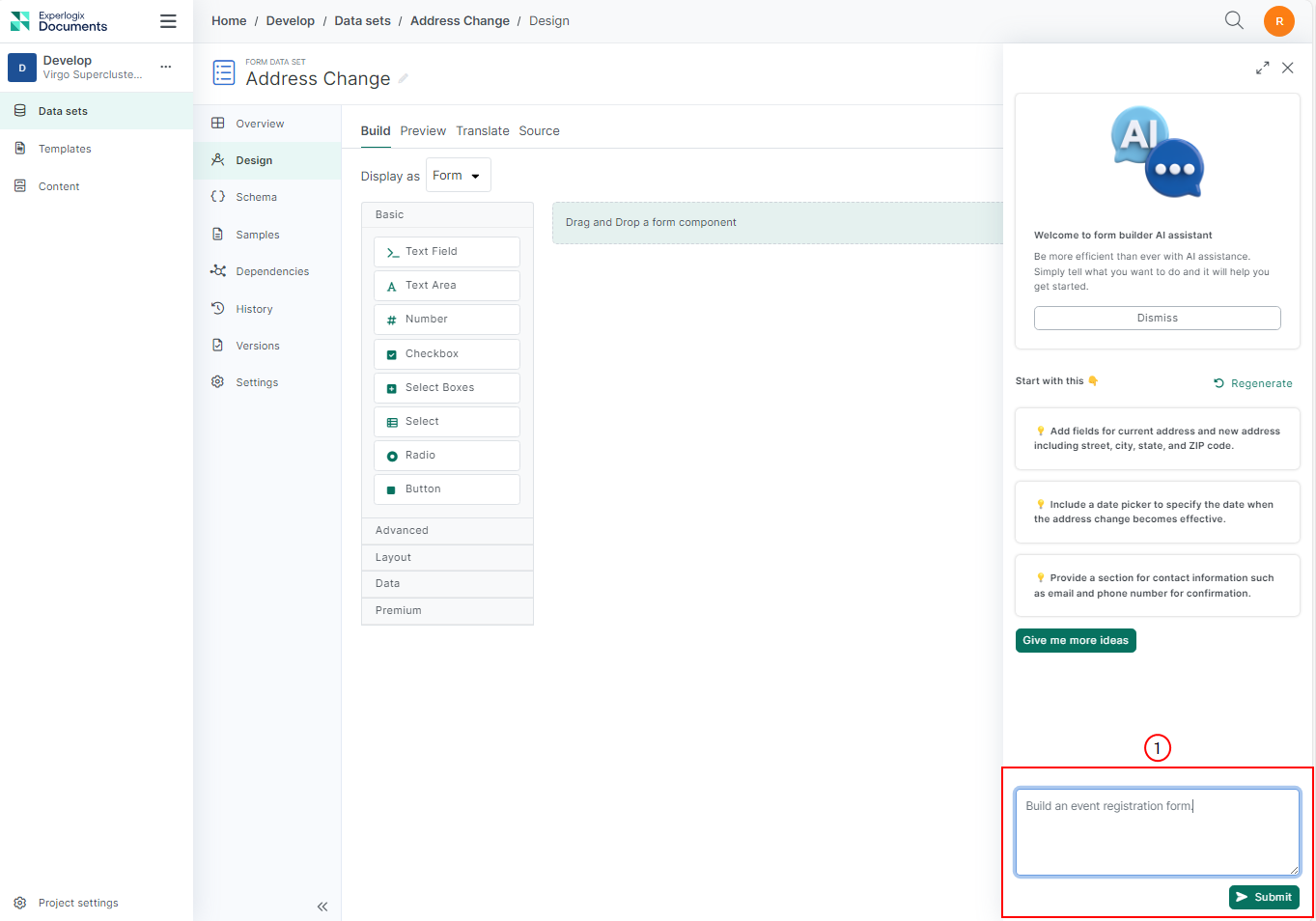
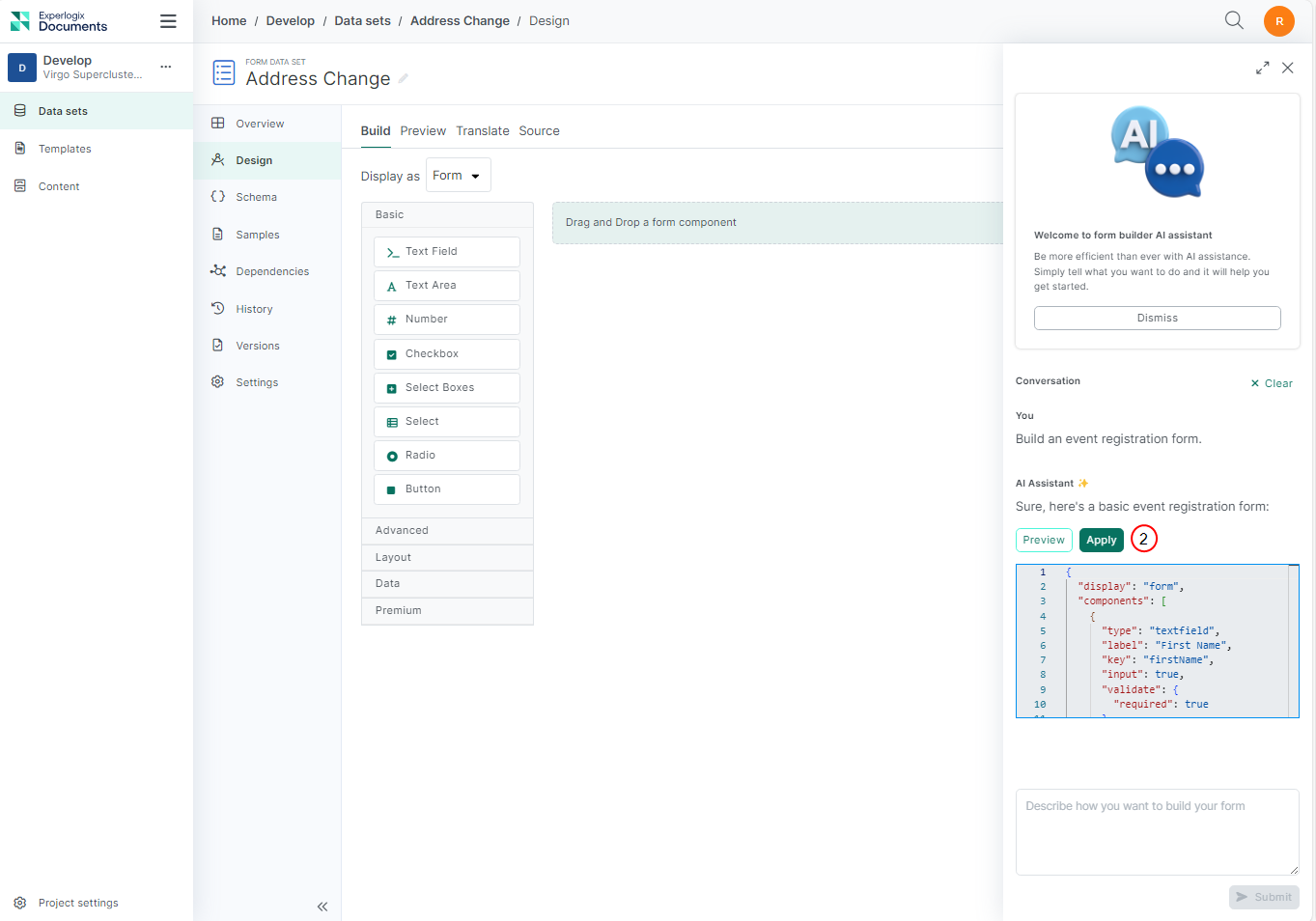
The AI Assistant generates the HTML code for the form based on your prompt and displays the Apply button.
-
Select Apply.
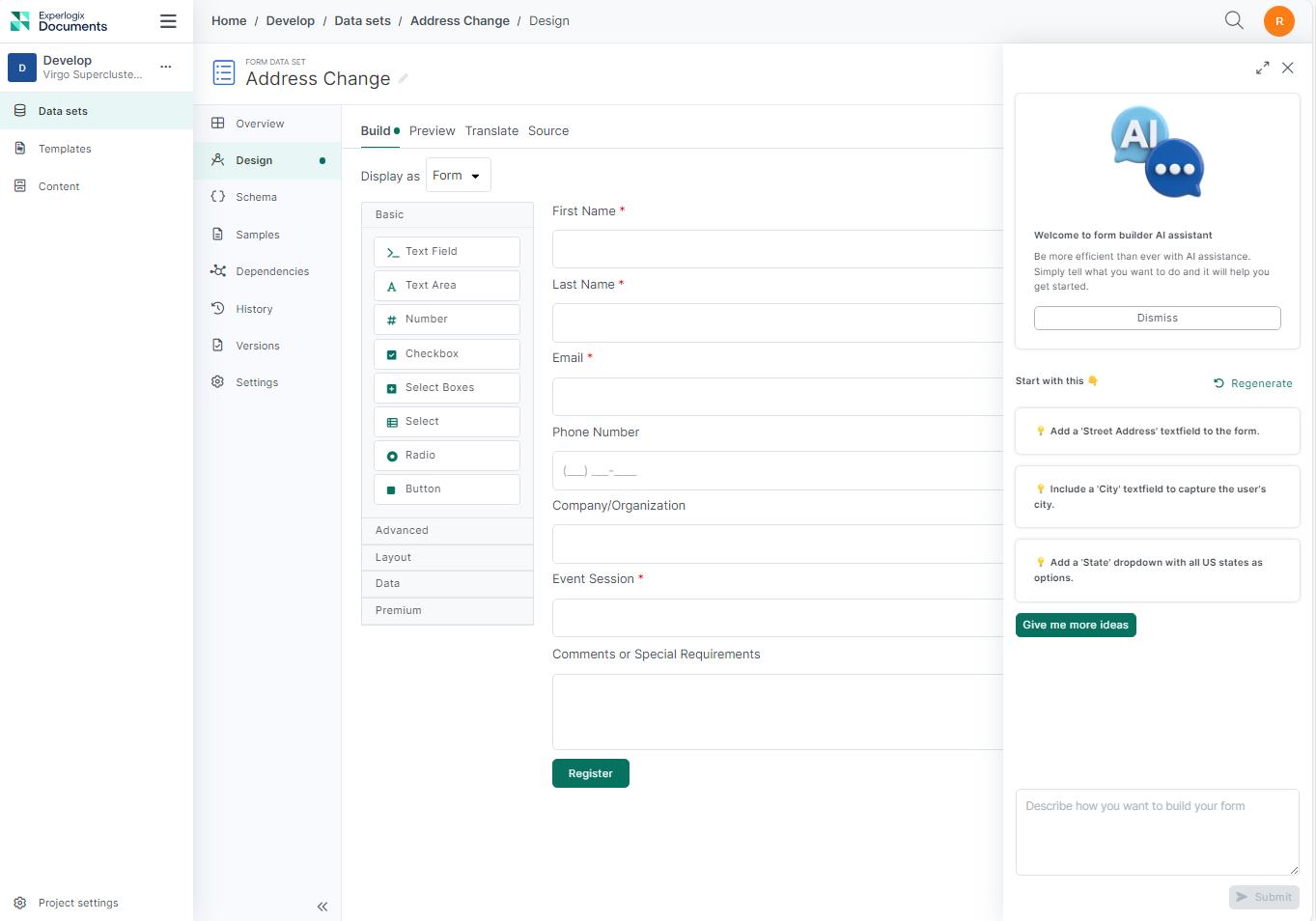
The form is automatically built in the Design tab of the selected data set.
-
Once the form is built, review it in the Design tab. If everything looks good, select Save to finalize the form.
AI Document Translation in Content Manager
Our AI-powered translation feature provides automated file translation within Content Manager, minimizing manual effort and improving efficiency. Users can locate a file in Content Manager and translate it directly within the application. The translated file can then be viewed in the browser or downloaded for offline use. To use the AI translation functionality follow the steps below.
Translating a File
-
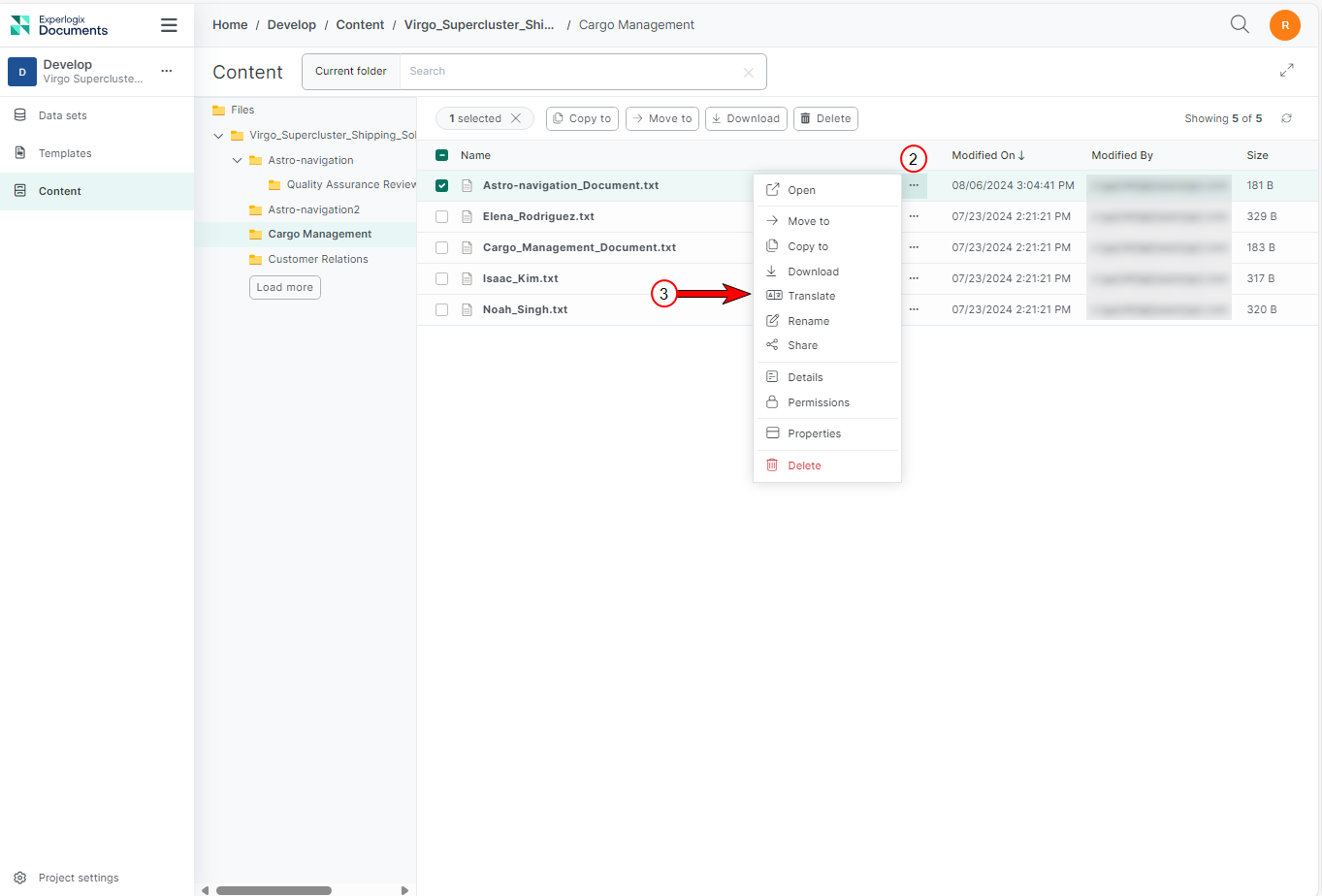
Select a file in the Content Manager List view.
-
Select the ellipsis button (...).
-
Select Translate.
-
From the Languages dropdown menu, select the desired language for translation.
-
In the dropdown menu, select Translate and Open to view the translated file in the browser, or select Translate and Download to download it for offline access.
Depending on your selection, the translated file will open in a new browser tab or be downloaded for offline use.
Document Processing Units (DPUs)
Translating a document using an AI translation service requires a license that includes Document Processing Units (DPUs). Each time the AI translation service is used, DPUs are deducted from the total at a rate of 1 DPU per 5,000 characters.
The number of DPUs available for AI translation can be viewed in the Licensing section. Once the maximum is reached, AI translation becomes unavailable, and an error message is displayed. Any unused DPUs expire at the end of the cycle period (typically one year) and are not carried over to the next cycle.