
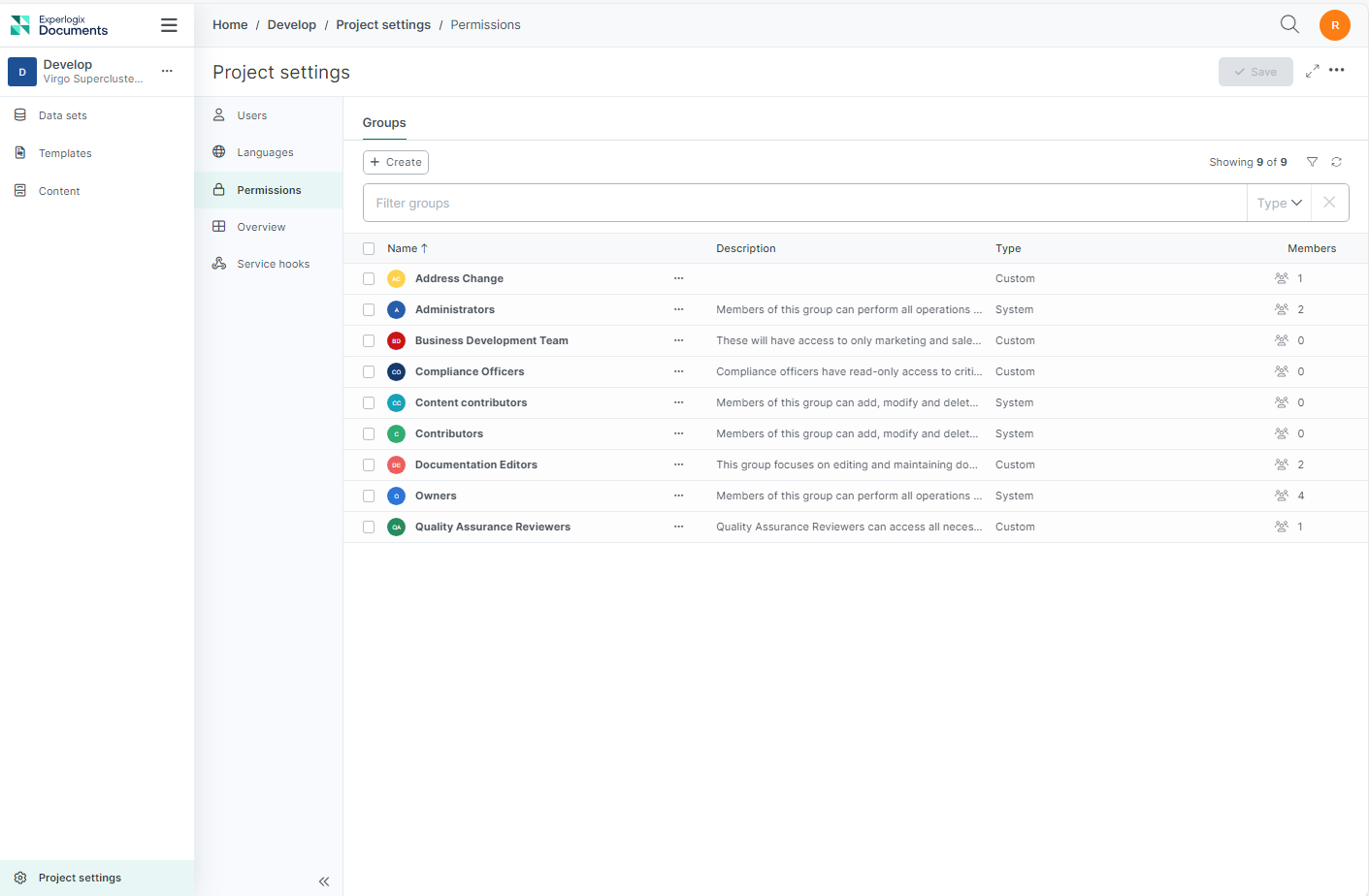
The Project Settings Permissions Tab displays all Permissions Groups available at the Project level. Managing access to project-wide settings and functionalities is essential for ensuring the security and efficiency of your operations. For more information, please refer to Permissions.
Accessing the Project Settings Permissions Tab
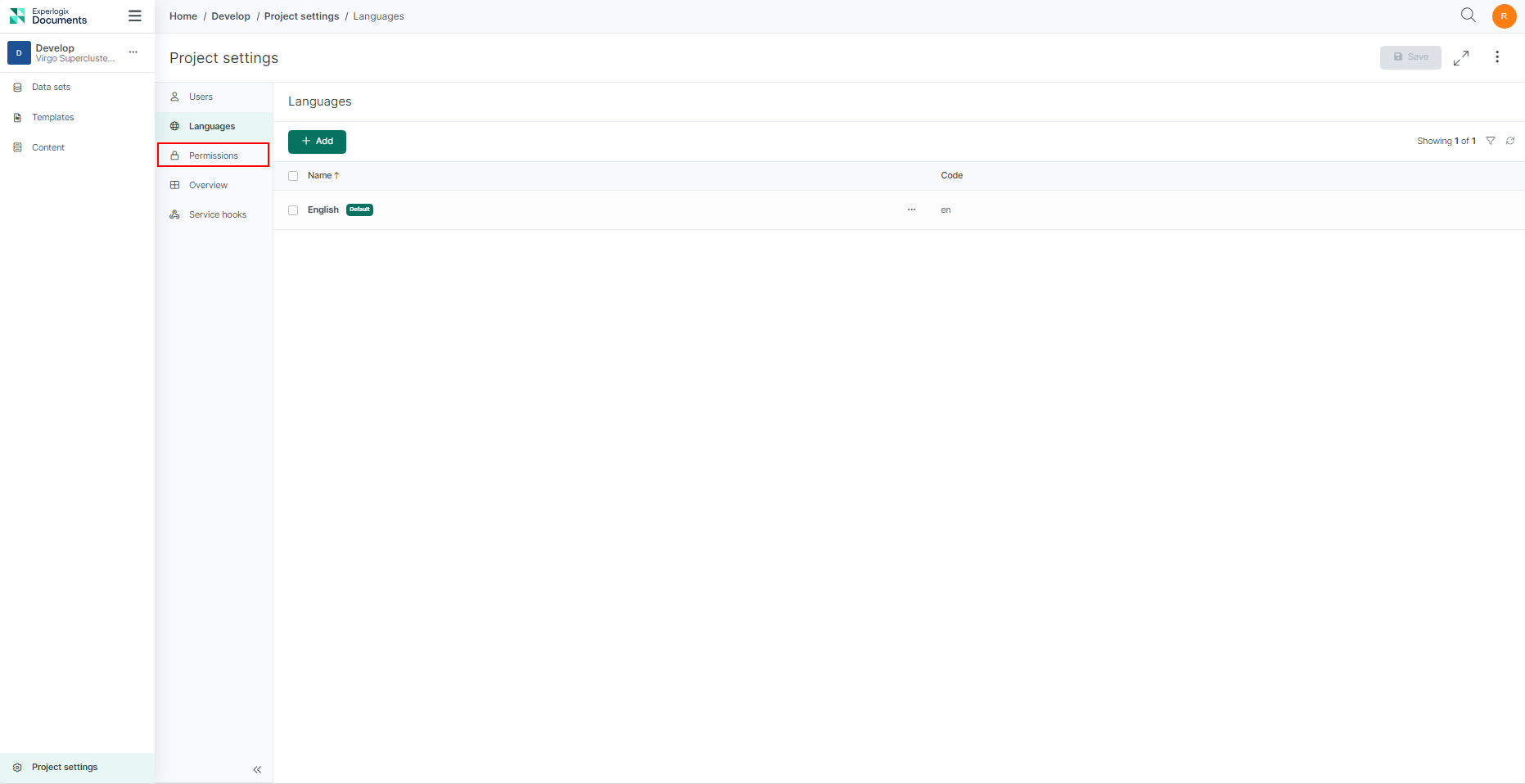
To access the Project Settings Permissions Tab, go to your Project Settings and select the Permissions tab.
The groups list view inside the permissions tab displays all groups (system or custom) and related metadata fields in the project. Here's a detailed overview of the various system groups available at the project level in Experlogix Documents.
|
Group Name |
Description |
|---|---|
|
Owners |
Members of this group can perform all operations and always have access to all objects within the project. |
|
Administrators |
Members of this group can perform all operations within the project. |
|
Contributors |
Members of this group can add, modify, and delete items within the project. |
|
Content Contributors |
Members of this group can add, modify, and delete content within the project. |
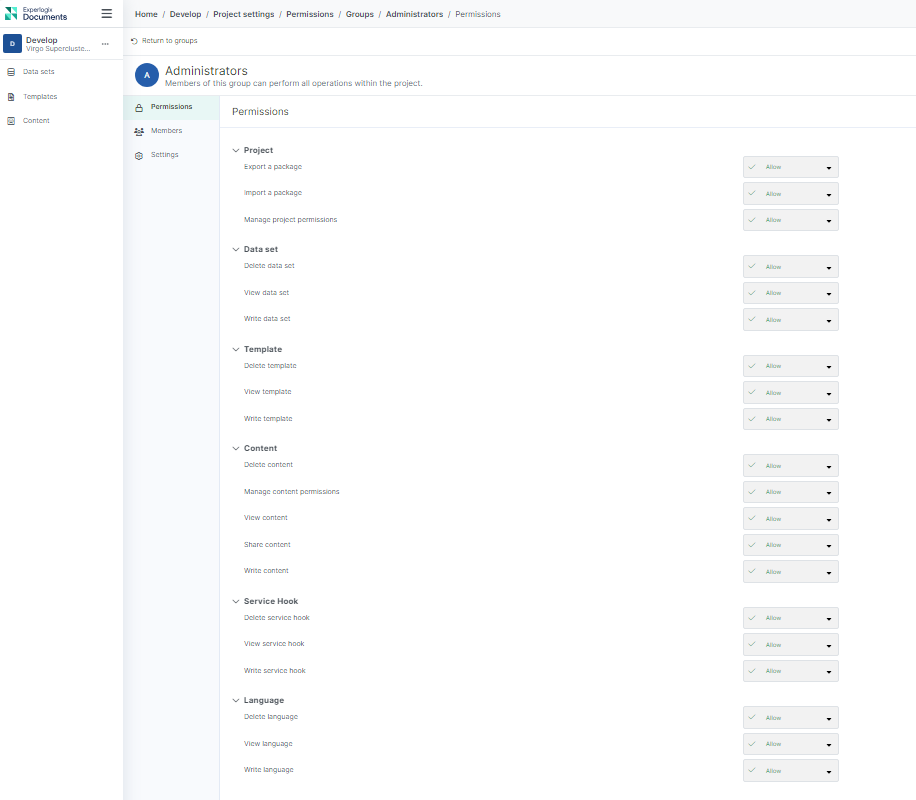
On the group list, select a system group to view the default permissions set for a project-level system group. You will be redirected to the view displaying the permissions for the chosen group. Below is an example view of the Administrator group.
Filtering Groups
You can filter groups in the group list using the methods outlined below. Use the following options to filter groups on the group list:
Locate specific groups by name
Inside the Filter text box above the Group list, enter the group name to filter the list by name.
-
Inside the Filter text box above the Group list, enter the group name to filter the list by name.
Locate specific groups by type
On the Type dropdown next to the Filter text box above the Group list, select the type of group to filter the list.
-
On the Type dropdown next to the Filter text box above the Group list, select the type of group to filter the list.