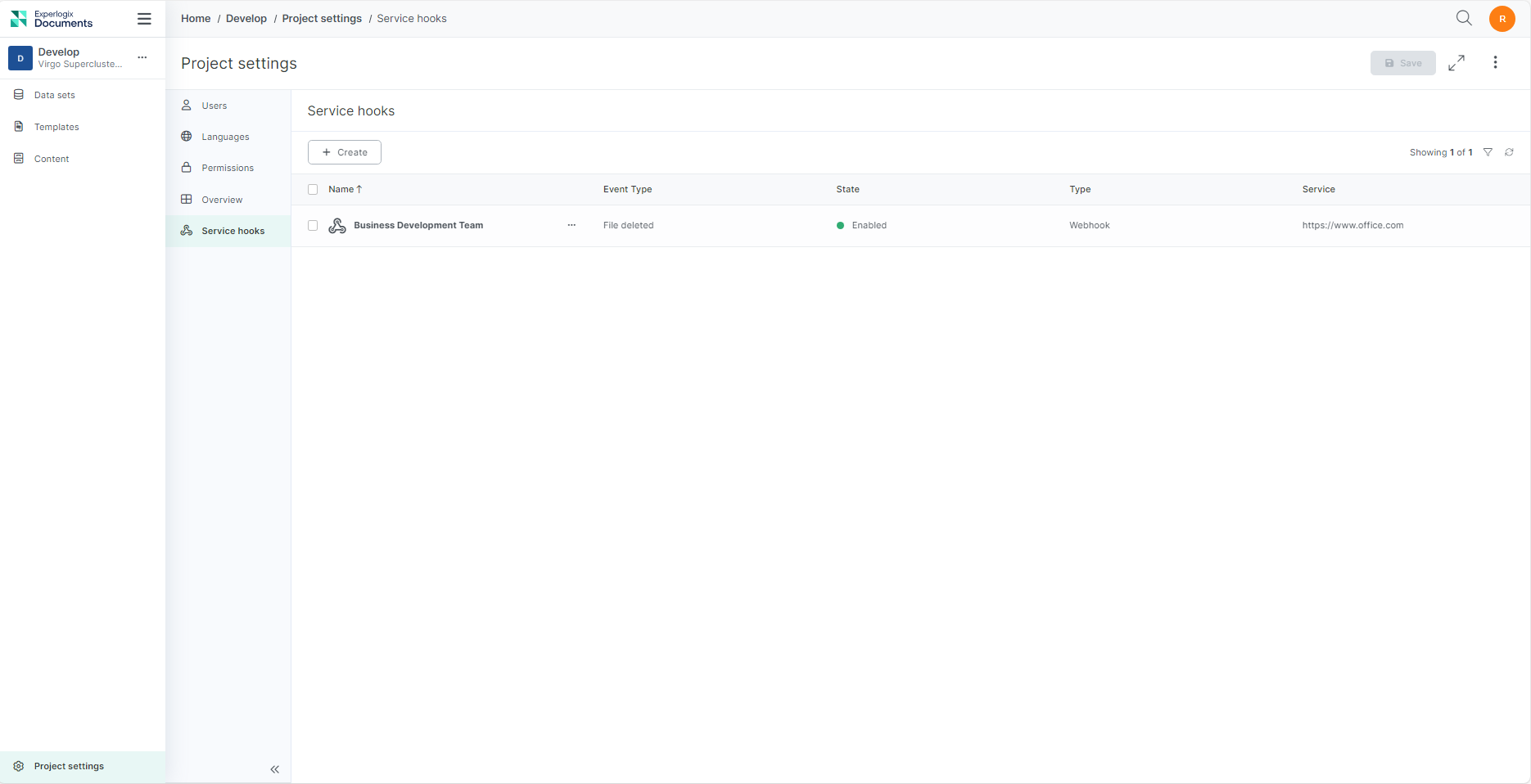
The Service hooks tab within Project settings allows users with appropriate permissions to add service hooks to their project to leverage data outputs between Experlogix Documentsand other providers. Service hooks are specific to each project and are not shared across organizations.
You can review and edit the configuration and executions of any of your service hooks by selecting them in the Service Hooks List view on the Project Settings page.
Supported Service Hook Types
-
Webhook
Service Hook Overview
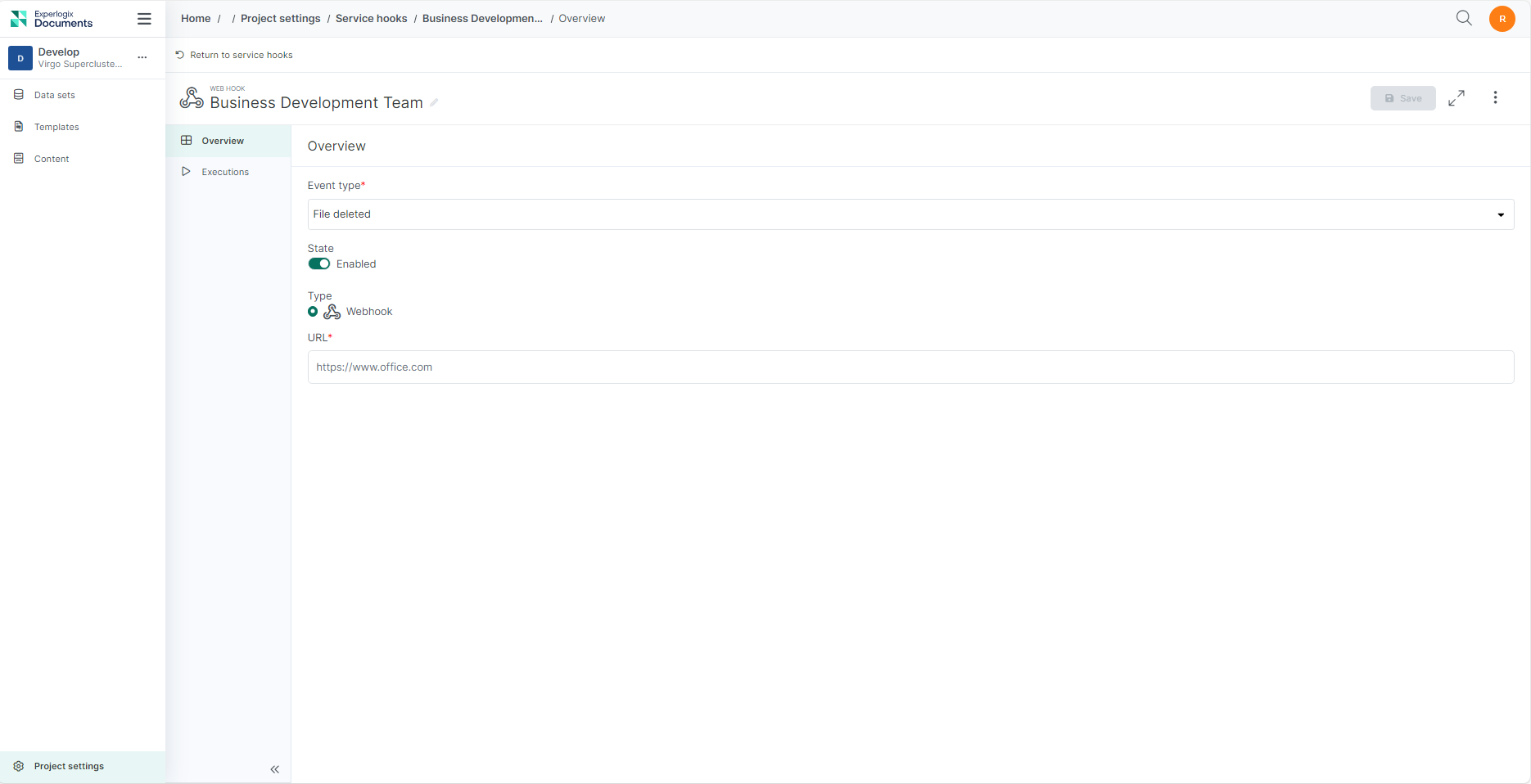
The Service Hook Overview tab provides the configuration information for your service hooks. You can also enable, disable, or edit your service hooks from this view.
|
Field |
Description |
|---|---|
|
Event Type |
Sets the execution trigger for the service hook with the following options.
|
|
State |
Determines whether your service hook is enabled or disabled. |
|
Type |
Denotes the type of service hook. |
|
URL |
Sets the URL used by the service hook during execution. |
Service Hook Executions
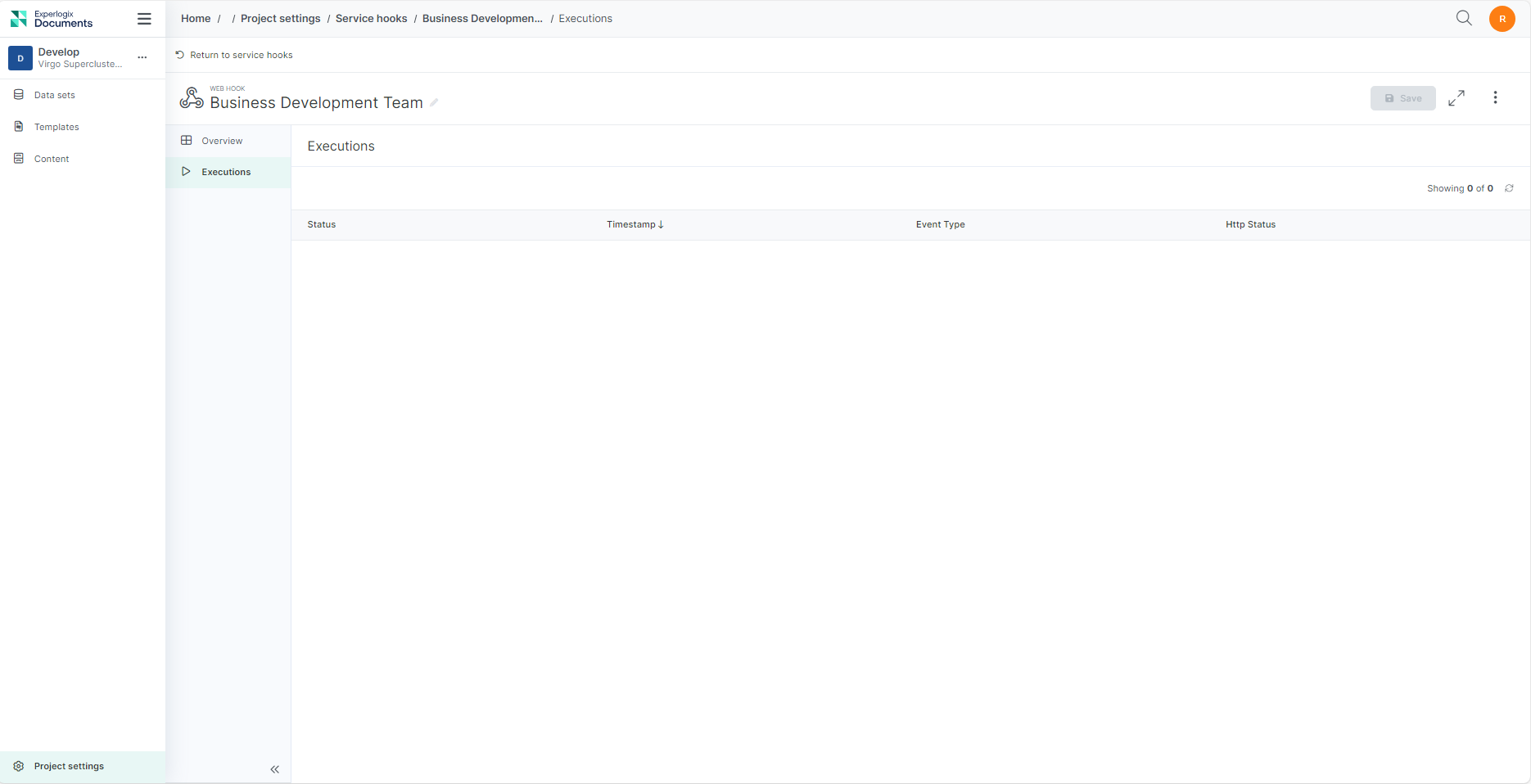
The Service Hooks Executions tab provides a report listing the executions of your service hook.
|
Field |
Description |
|---|---|
|
Status |
Shows the current or final status of a service hook with the following states:
|
|
Timestamp |
Provides time for the trigger of the service hook execution. |
|
Event Type |
Displays the trigger for the execution. |
|
Http Status |
Displays the HTTP response status with the following states:
|
Procedures
Creating a Service Hook
Service hooks allow you to execute tasks in other services when events occur in your project. When you create a service hook, you configure the event type for the service hook.
-
Select +Create.
-
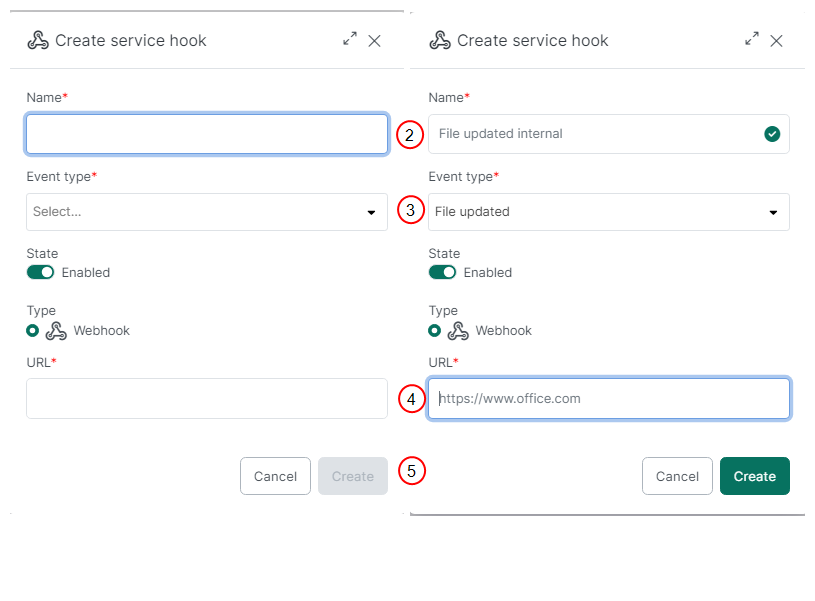
In the Name field, enter a unique name for the webhook.
-
In the Event Type drop-down menu, select an event type for this service hook.
-
In the URL field, enter the URL for your service hook.
-
Select Create.
Your new service hook displays in the List view.
Deleting a Service Hook
-
Select the service hook you want to delete.
-
Select Delete.
The service hook is deleted from the List view.
Enabling or Disabling a Service Hook🔗
-
Select the service hook.
-
Select Enable or Disable.
The State of the service hook is changed.
Managing service hooks in bulk
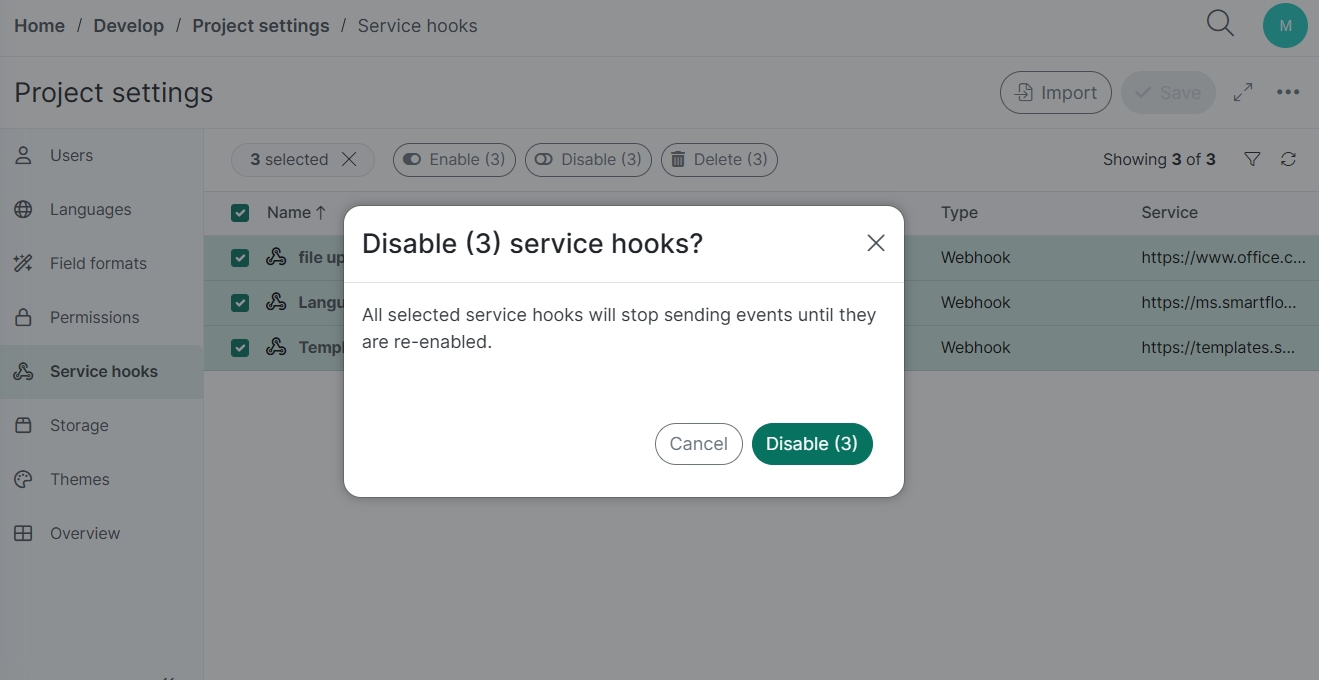
You can delete, enable, or disable multiple service hooks simultaneously. To perform bulk actions:
-
Select the checkboxes next to the hooks you want to modify.
-
Click the required action button (Enable, Disable, or Delete) in the bulk management menu.
The Enable and Disable buttons only become active if your selection contains hooks that can actually undergo that change (e.g., the Enable button appears only if at least one selected hook is currently disabled).