
Content Manager offers a seamless user experience for managing content, systematic organization of files/folders, and conflict resolution solutions. We’ll delve deeply into the features of Content Manager, like opening, creating, uploading, copying, moving, and downloading files or folders. Additionally, we will cover the nuances of file management, sharing options, and file/folder details.
Navigate to the project dashboard and select Content from the menu on the left side.
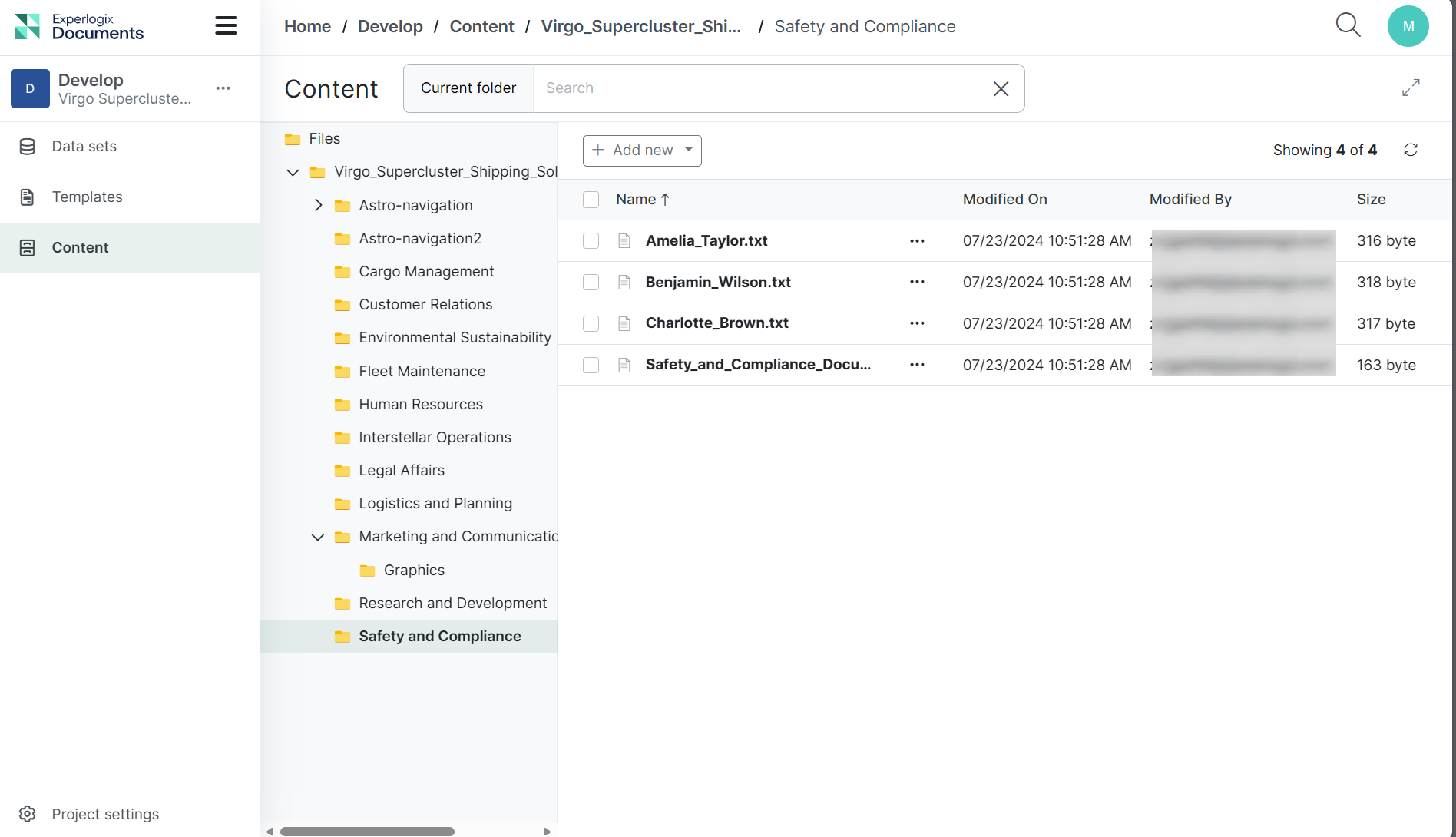
This opens the Content Manager page, and you will see a repository of documents.
Permissions
Actions in Content Manager depend on your permissions for the selected files and folders, both in the list view and on the Details page. Unless stated otherwise, the permission applies to the selected item.
|
Action |
Required permission |
Note |
|---|---|---|
|
Browse folders and open files |
View content |
|
|
Open supported Office files in view mode |
View content |
|
|
Open supported Office files in edit mode |
Write content |
|
|
View details and history |
View content |
|
|
Download |
View content |
Folder downloads include only the items you can view. |
|
Create a folder |
Write content on the parent folder |
The name must be unique in the folder, including items you cannot see. |
|
Upload |
Write content on the destination folder |
Overwriting a file or merging into an existing folder also requires View content and Write content on that item. |
|
Rename |
Write content |
The name must be unique in the folder, including items you cannot see. |
|
Edit description and metadata |
Write content |
|
|
Restore a version |
Write content |
|
|
Move |
Write content on the item and the destination folder |
See Moving and Copying Items below. |
|
Copy |
View content on the item and Write content on the destination folder |
Only the items you can view are copied. See Moving and Copying Items below. |
|
Delete |
Delete content |
Deleting a folder removes all of its content, including items you cannot view or delete. |
|
Translate |
View content |
Requires AI translation in your license. Consumes DPUs. |
|
Share |
View content and Share content |
Requires sharing in your license. Managing existing shares requires Share content. |
|
Manage permissions |
Manage content permissions |
Requires explicit permissions management in your license. |
By default, Project Owners, Project Administrators, and Content Contributors have all content permissions. If you lack the required permission for an action, it is hidden or disabled.
Moving and Copying Items
An item can have explicit permissions, set on its Permissions tab, and inherited permissions, received from its parent folder.
Moving: Explicit permissions on the item and its content move with it. Inherited permissions are replaced by those of the new location.
-
The Payroll folder explicitly denies access to the Sales group. After you move it to Shared, the Sales group still cannot access it.
-
The Invoices folder inherits Finance-only access from the Finance folder. After you move it to Shared, it inherits the permissions of Shared instead.
Copying: Explicit permissions are not copied. The copy inherits the permissions of the destination folder.
-
The Payroll folder explicitly denies access to the Sales group. After you copy it to Shared, the copy inherits the permissions of Shared, so the Sales group can access it if Shared allows it.
If the item or one of its parent folders has explicit permissions, the Copy dialog displays a warning: "The selected item has explicit permissions, they will not be copied over." For several items: "Some of the selected items have explicit permissions, they will not be copied over."
Content Manager Layout
The Content Manager workspace consists of two panes:
-
Folder tree (left pane): Displays the folder hierarchy of the project. Select a folder to display its content.
-
List view (main pane): Displays the folders and files in the selected folder.
The folder tree, the list view, and the breadcrumb above the list stay synchronized. When you open a folder in one of them, the others update to the same location.
Each file and folder also has a dedicated Details page, where you can manage its properties, metadata, shares, history, and permissions.