
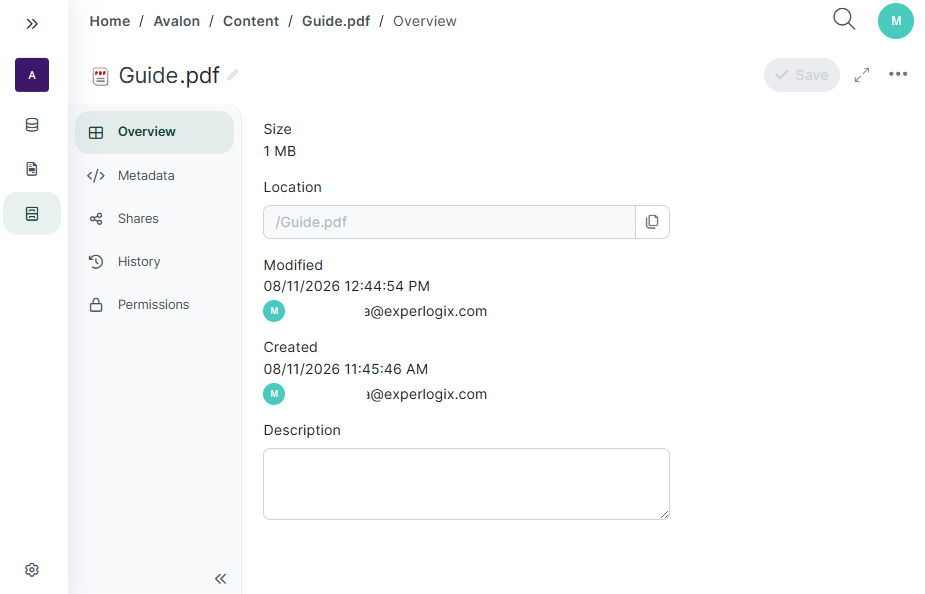
The Content Manager Details page provides a detailed outline of individual content items. This view facilitates efficient content management by displaying all relevant attributes and details in a single, organized interface.
Permissions
Access to specific tabs, properties, and actions on the Details page depends on your assigned role-based permissions and project license. If a tab is hidden or an action is disabled (such as editing details, managing versions, sharing files, or configuring access controls), ensure that you have the appropriate permissions assigned to your account or group.
Accessing the Details Page
You can open the Details page using either of the following methods:
-
From List View: Select the ellipsis button (...) next to a file or folder and select Details.
-
From the Properties Panel: Open the Properties panel and select Details.
Item Header Actions
-
Inline Renaming: Users with write permissions can select and edit the file or folder name directly in the header text box.
-
Actions Menu: Access quick actions such as Open, Move to, Copy to, Download, Translate, Delete, and Refresh.
Navigation Tabs
|
Tab Name |
Applicable To |
Purpose |
|---|---|---|
|
Files & Folders |
View file and folder details, including the location path, size, creator, creation date, last modified date, and last modified by. The location path can be copied, and the item description can be edited. |
|
|
Files & Folders |
Add and manage metadata for files and folders using form data sets or custom JSON/XML. |
|
|
Files only |
Create and manage public links to share files for download or browser viewing, with the option to set an expiration date. |
|
|
Files & Folders |
View and manage file versions, restore previous versions, add comments, and review activity history for files and folders. |
|
|
Files & Folders |
View and configure explicit user and group access permissions for the specific item. |