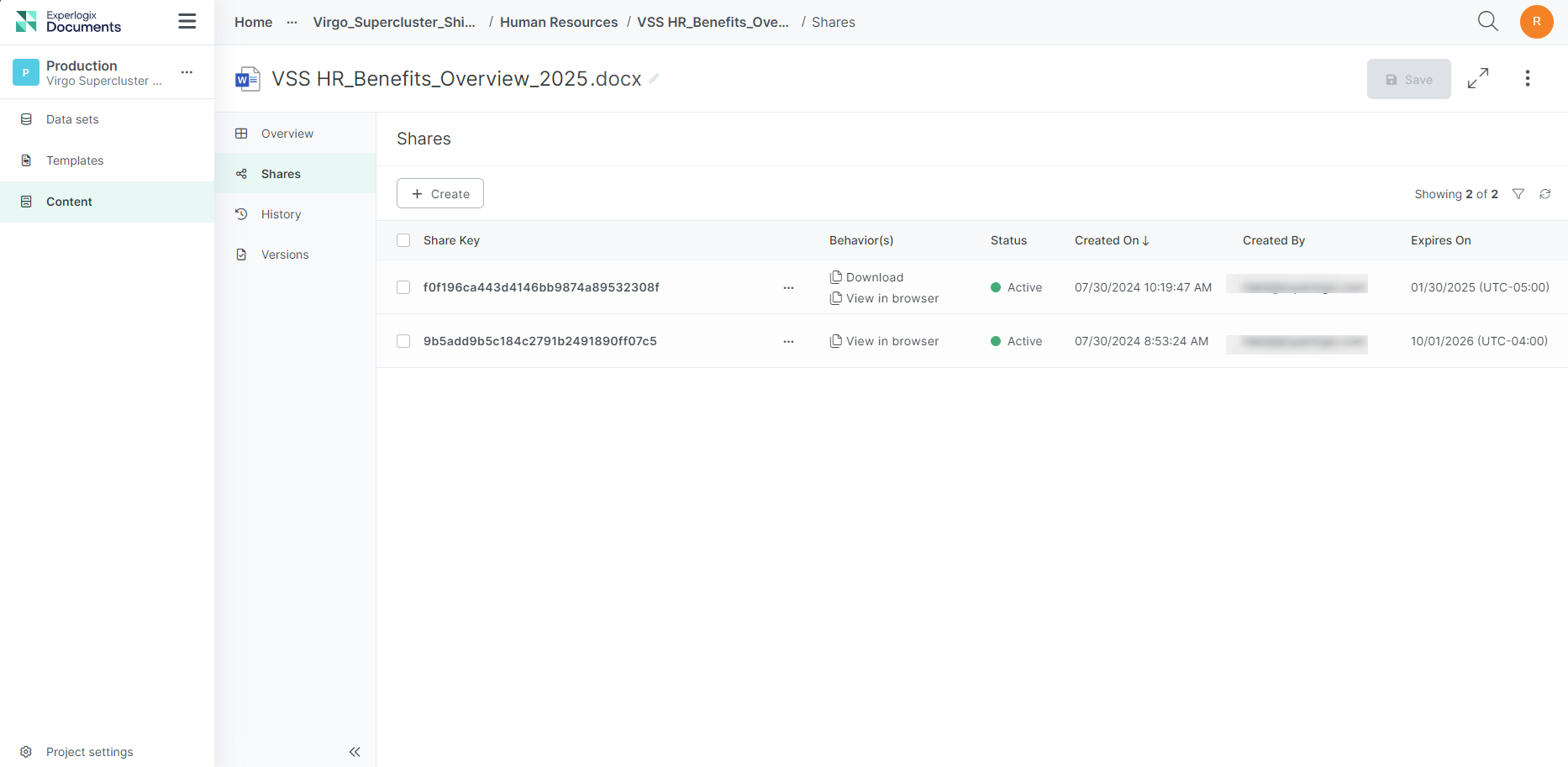
The Content Manager Shares tab allows you to access all the shares for a piece of content from a single location. The Content Manager Shares tab is only visible on files, not folders, and sharing can be done from both the Content Manager List view and the Shares tab for a given file.
If you share with anonymous users, the only requirement for accessing the file is the share link itself. No login or account is required.
Permissions
Managing shared links requires the Content / Share permission, which is granted by default to the Owners, Administrators, and Content Contributors system groups (for custom groups, it is not set by default).
|
Action |
Required Permissions |
|---|---|
|
View, Edit, or Delete Shares |
Content / Share |
|
Create New Share Link |
Content / Read + Content / Share |
Note: Sharing is available for individual files only (folders cannot be shared, and sharing is not available as a bulk action).
Sharing from Content Manager
Within Content Manager, you can share files with anonymous stakeholders.
When you share files from Content Manager, you can configure the scope of the link(s) within the share. The scope of the link defines how recipients can access the shared file.
Access Method
When sharing, you can specify how the user will be able to access your shared file.
-
View in browser: The file will attempt to open itself in the user's browser if possible (e.g., PDF, image, etc.). The ability to open and edit files directly in the browser depends on the file type, the user's license, and the user's browser capabilities. For example, Microsoft Edge can open. DOCX files in the browser if the user has the license, while Google Chrome cannot. If the browser cannot open the file, it will be downloaded instead.
-
Download: The file will be downloaded to the recipient's machine.
If you select both View in browser and Download, the system generates separate links for each action.
Access Time Frame
When you create a share, you have the option to set an expiration date for it. After this date, the links in the share will no longer be active. You do not have to set an expiration date, as we do support permanent hyperlinks with no expiration. Additionally, even if you make a permanent link, you can later delete the link, making the shared content unavailable as business needs change via the Shares tab for that item.
Procedures
Managing Shared Links
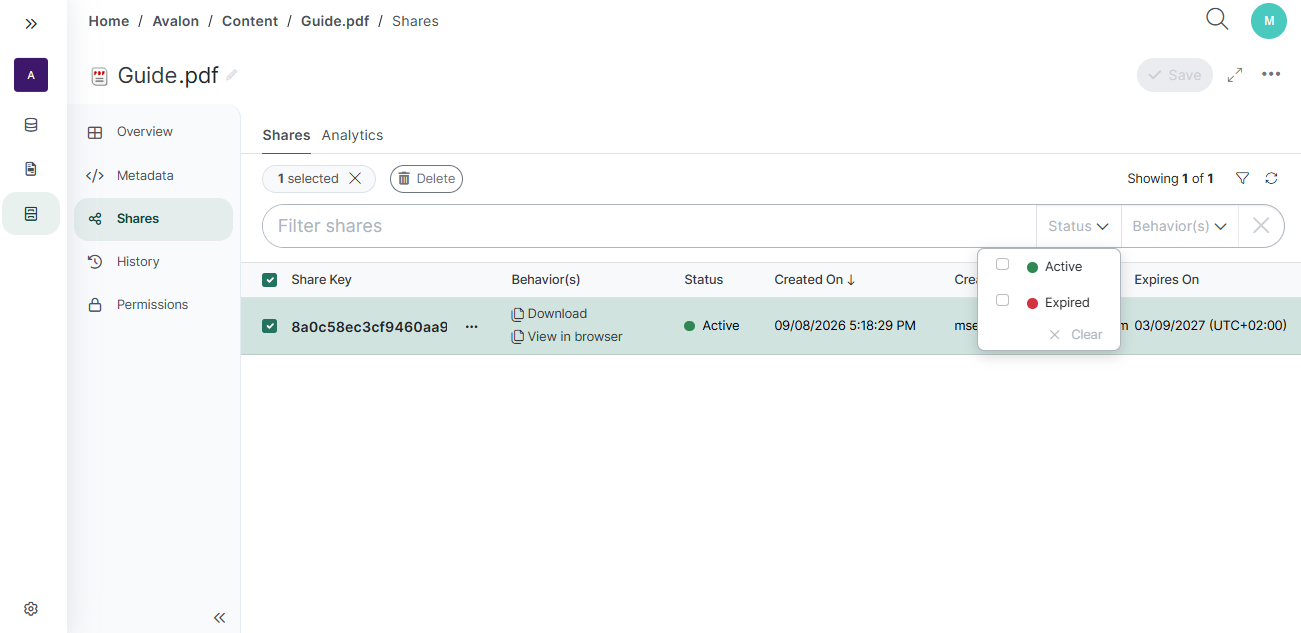
The Shares tab displays all active and expired links generated for the selected file.
Shares Table Overview
The Shares table displays all active and expired links generated for the selected item:
-
Share Key: The unique identifier for the share. Selecting the key on an active share opens the edit dialog.
-
Behavior(s): Action buttons (View and Download) that allow you to copy the respective direct link to your clipboard.
-
Status: Displays Active or Expired.
-
Created On / Created By: Creation timestamp and user display name.
-
Expires On: Expiration timestamp and time zone offset (e.g.,
YYYY-MM-DD (UTC+0)), or “Never” for permanent shares. -
Analytics CTAs:
-
File-Level Analytics (All Shares): Select the Analytics sub-tab at the top of the Shares screen to view aggregated view/download metrics across all shares for the file.
-
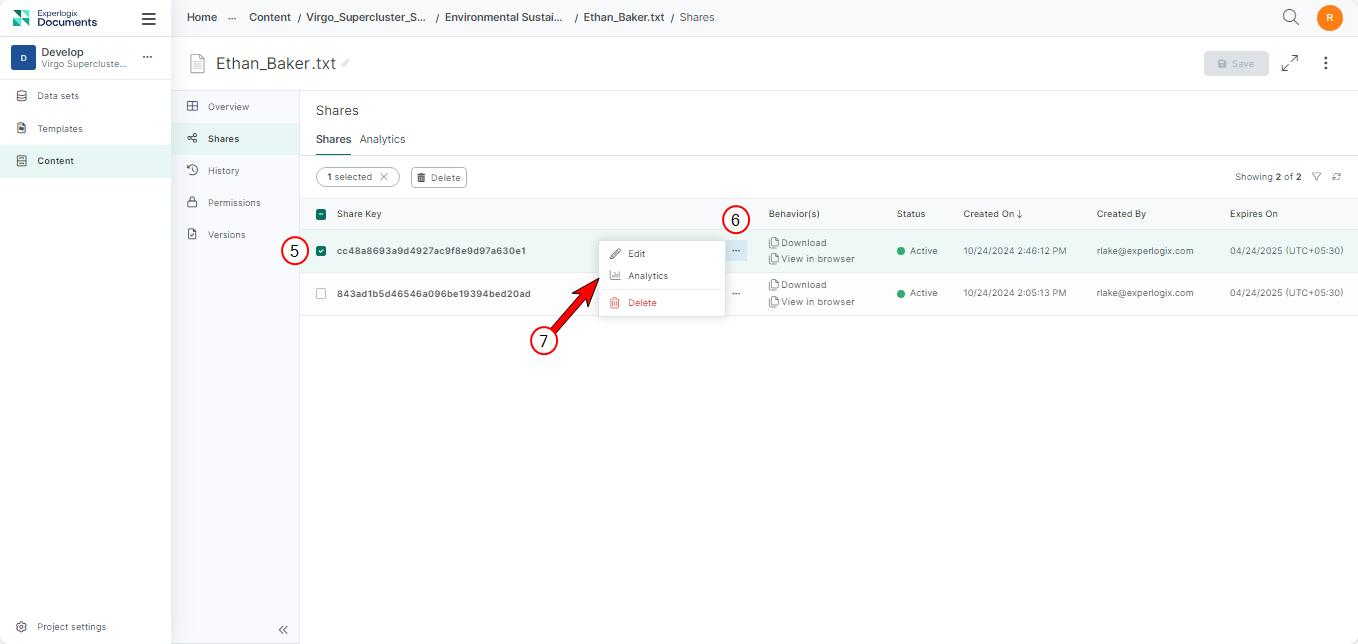
Share-Level Analytics (Specific Share): Select the ellipsis button (...) on a specific share row and select Analytics to view interaction history and metrics for that individual share.
-
Accessing the Shares Tab
-
Select a file in the Content Manager List view.
-
Select the ellipsis button.
-
Select Details.
-
Select the Shares tab.
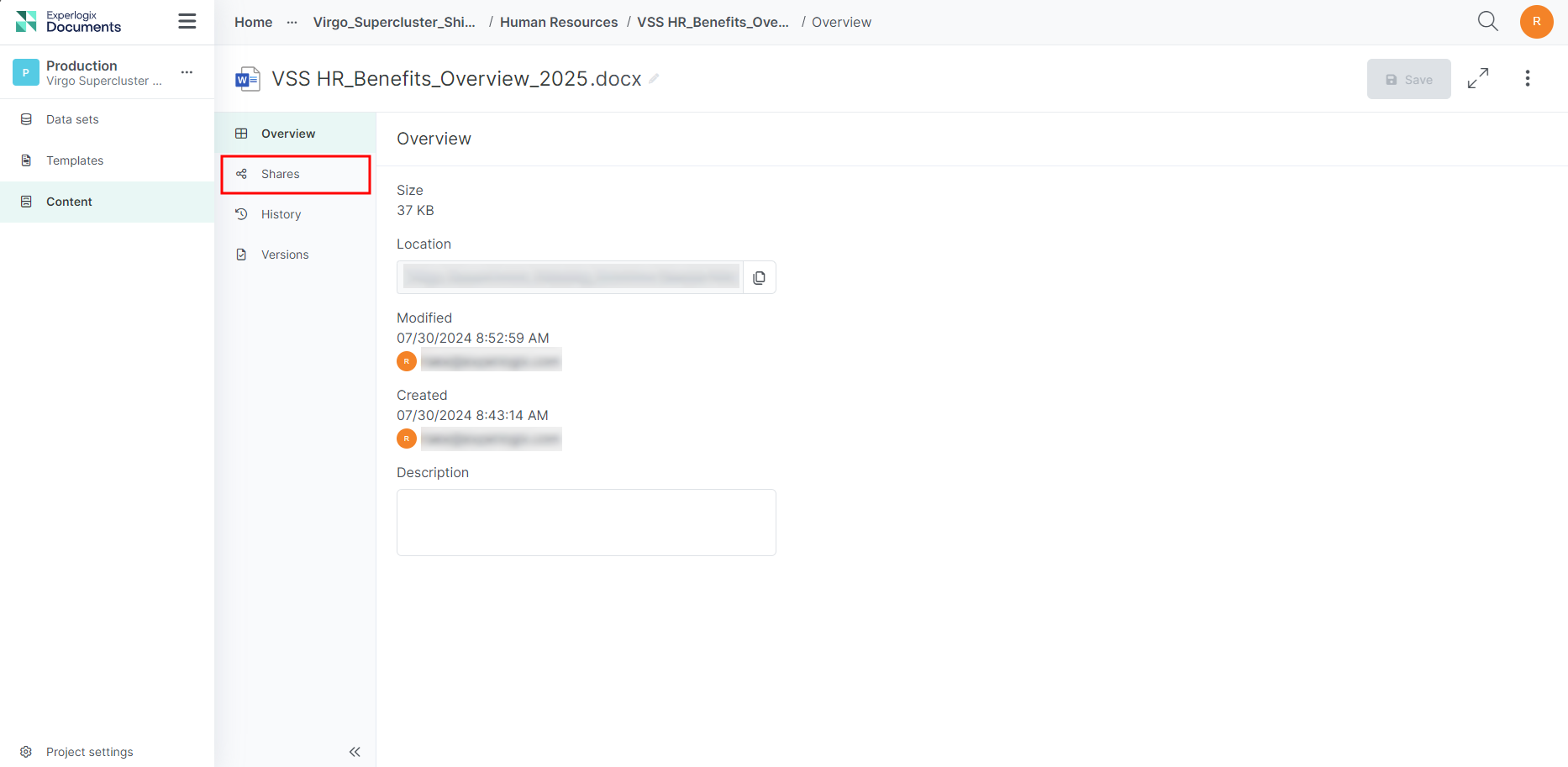
The Shares tab displays for the selected file.
Creating a Share Link
You can create a share link from the following two locations within the Content Manager.
-
The Content Manager List view when viewing files
-
The Shares tab for a given file
Below, we'll look at different ways to manage this from different locations and use cases.
Note: Sharing is available for individual files only (folders cannot be shared, and sharing is not available as a bulk action).
Creating a Sharing Link from the Files List View
Use Case Example: Sharing Evolving Content with an Expiration Date
Sophia Anderson, the Human Resource Manager for Virgo Supercluster Shipping Solutions LLC, plans to share the company benefits overview with prospective employees before open enrollment. She is awaiting final details on some benefit offerings, so the document will be available exclusively online to prevent outdated downloads. Sophia will update the document with new benefits up until the first day of open enrollment. The sharing link will expire two months before the next year's open enrollment, at which point she will repeat the process.
-
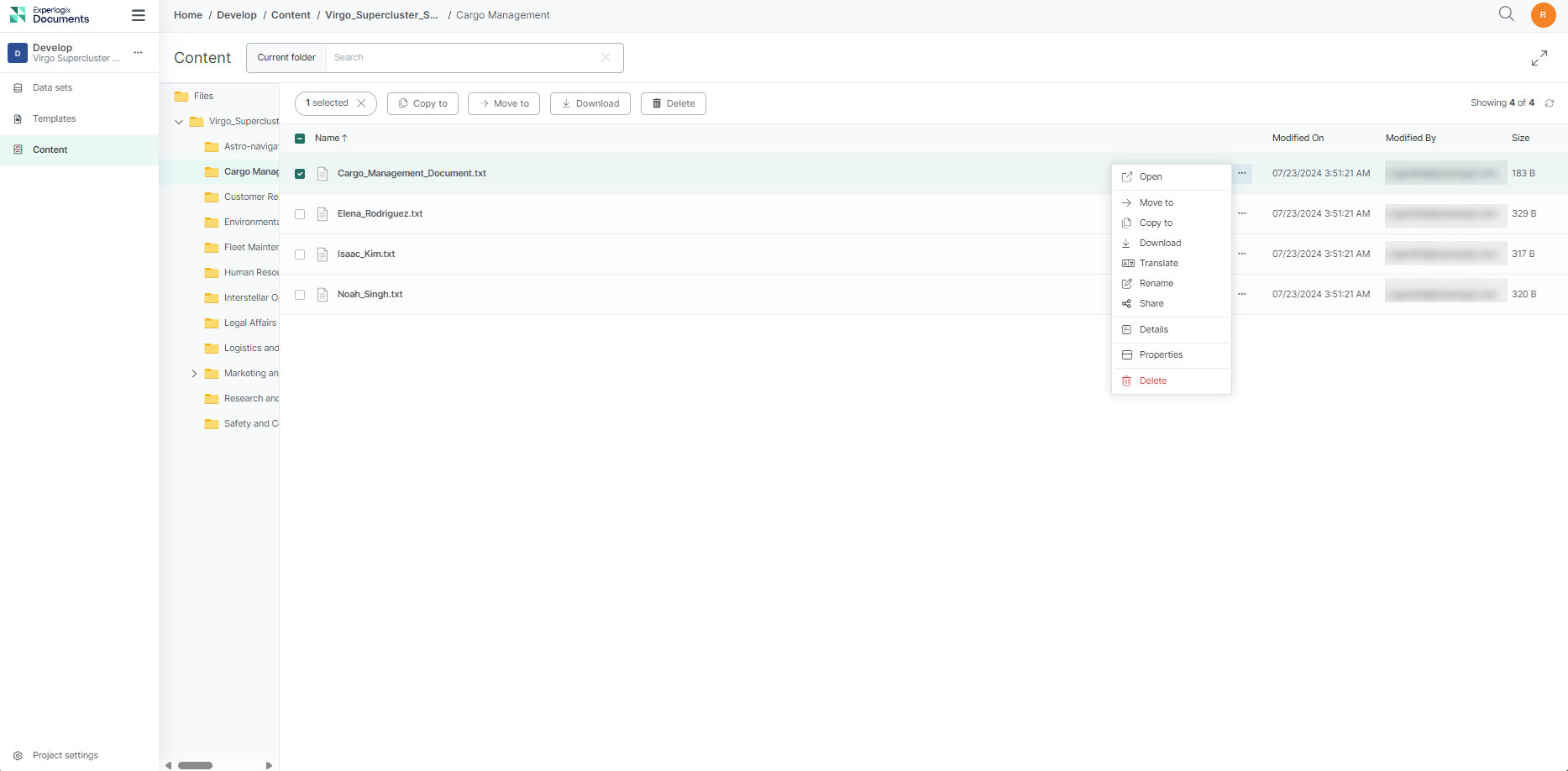
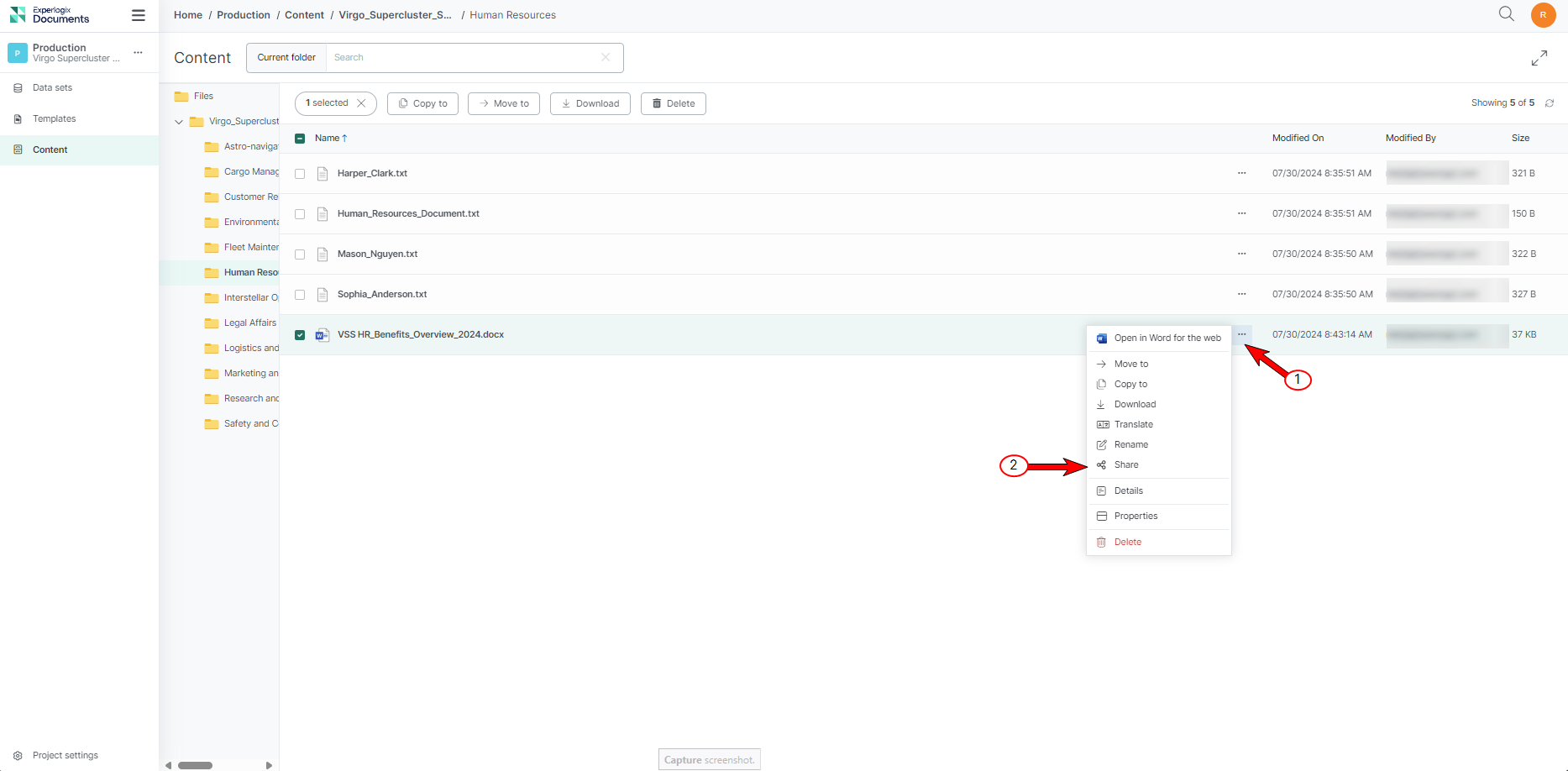
In the Content Manager File List view, select the ellipsis button for the file you wish to share.
-
Select Share.
-
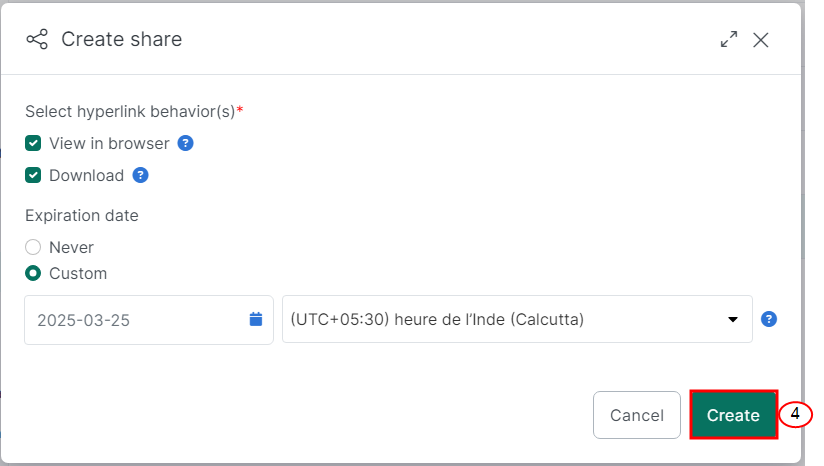
Configure your sharing link:
-
Select View in browser if you want the user to be able to open the file in the browser.
-
Select Download if you want the user to be able to download the file from the link.
-
If you select both View in browser and Download, the system generates separate links for each action.
c. If you want the link to be permanent, select the Never button under Expiration Date.
d. If you want the link to expire after a certain period, select the Custom button under Expiration Date and set the Date and Time Zone to use to execute the date.
To go along with the Use Case Example: Sharing Evolving Content with an Expiration Date, we've configured as follows:
-
View in browser
-
Expiration of 2025-08-31 or two months before open enrollment in October 2025.
-
Select the Create button.
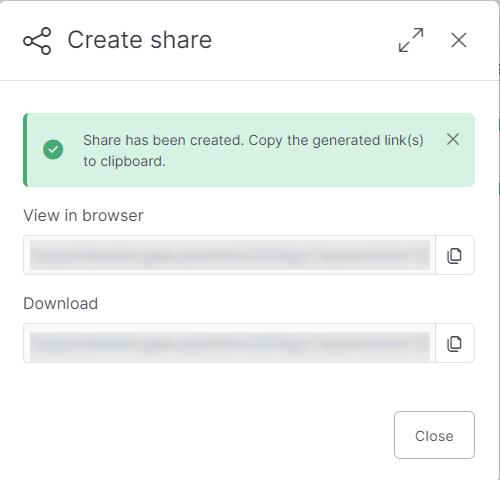
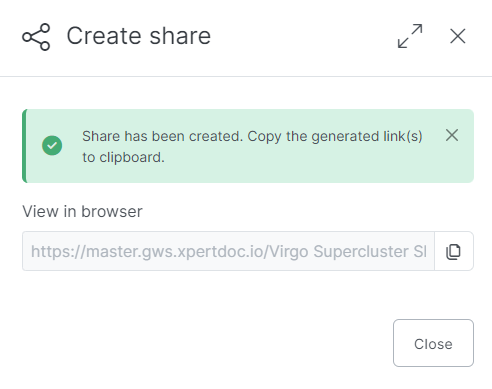
The Create Share dialog displays with your links ready to copy into other applications.
Creating a Sharing Link from the Content Manager Shares Tab
Use Case Example: Ensuring Up-to-Date Compliance Information for the Contractor's Team
Ava Tan, the Fleet Maintenance Manager at Virgo Supercluster Shipping Solutions LLC, wants to share the Long-Duration Mission Planning Guidelines with a broader audience. These users are anonymous, do not need authorization to access the data, and belong to a different outsourced contractor company. The document includes crucial checklists and compliance information necessary for upcoming missions. Ava plans to make this document available for both viewing and downloading, allowing users to access it offline during mission preparation and when they are in transit with limited connectivity. She will update the document as new regulations and guidelines are received, ensuring that users always have the most current information.
-
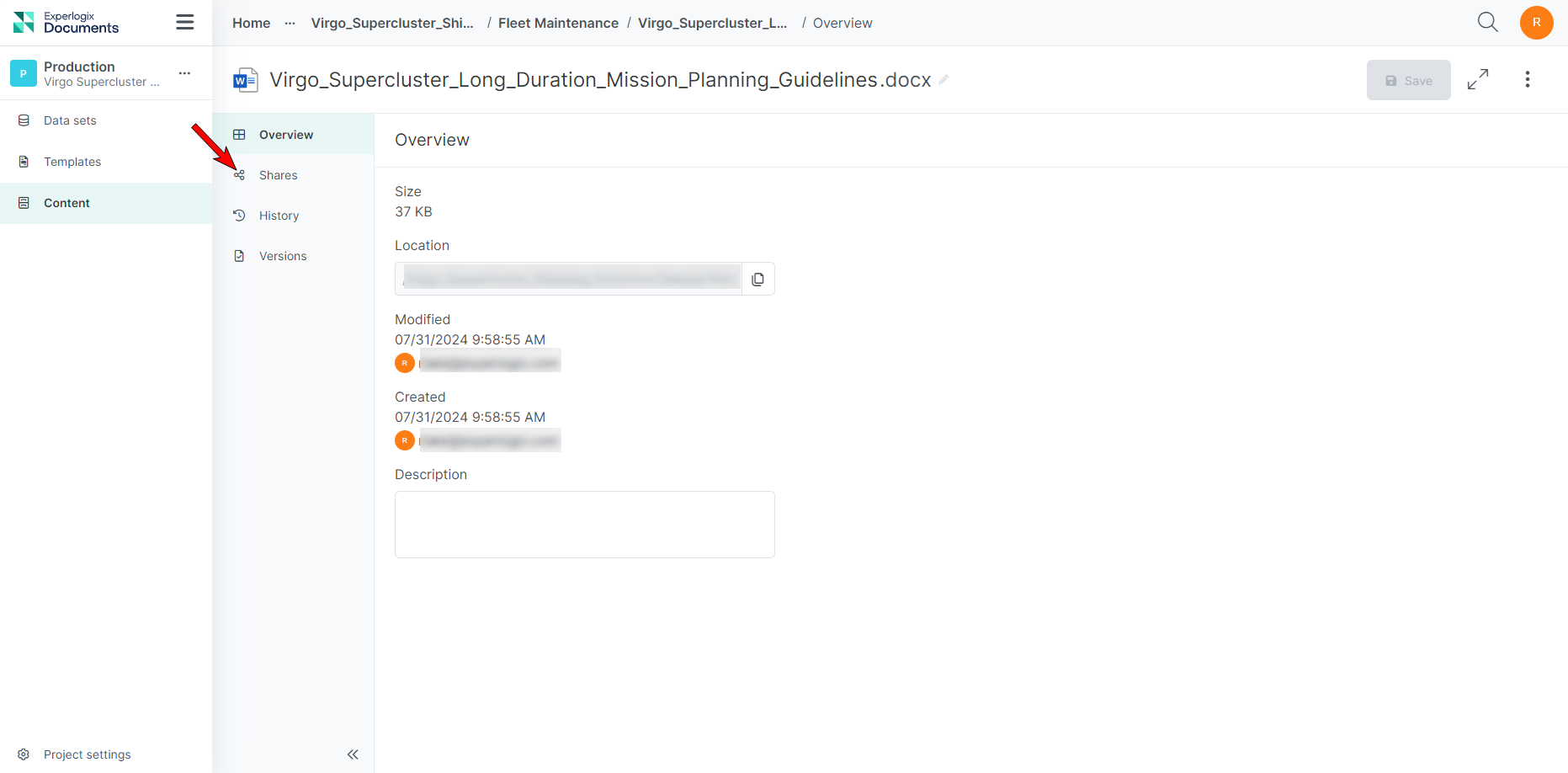
From the Overview tab for the file, select Shares.
-
Select the + Create button.
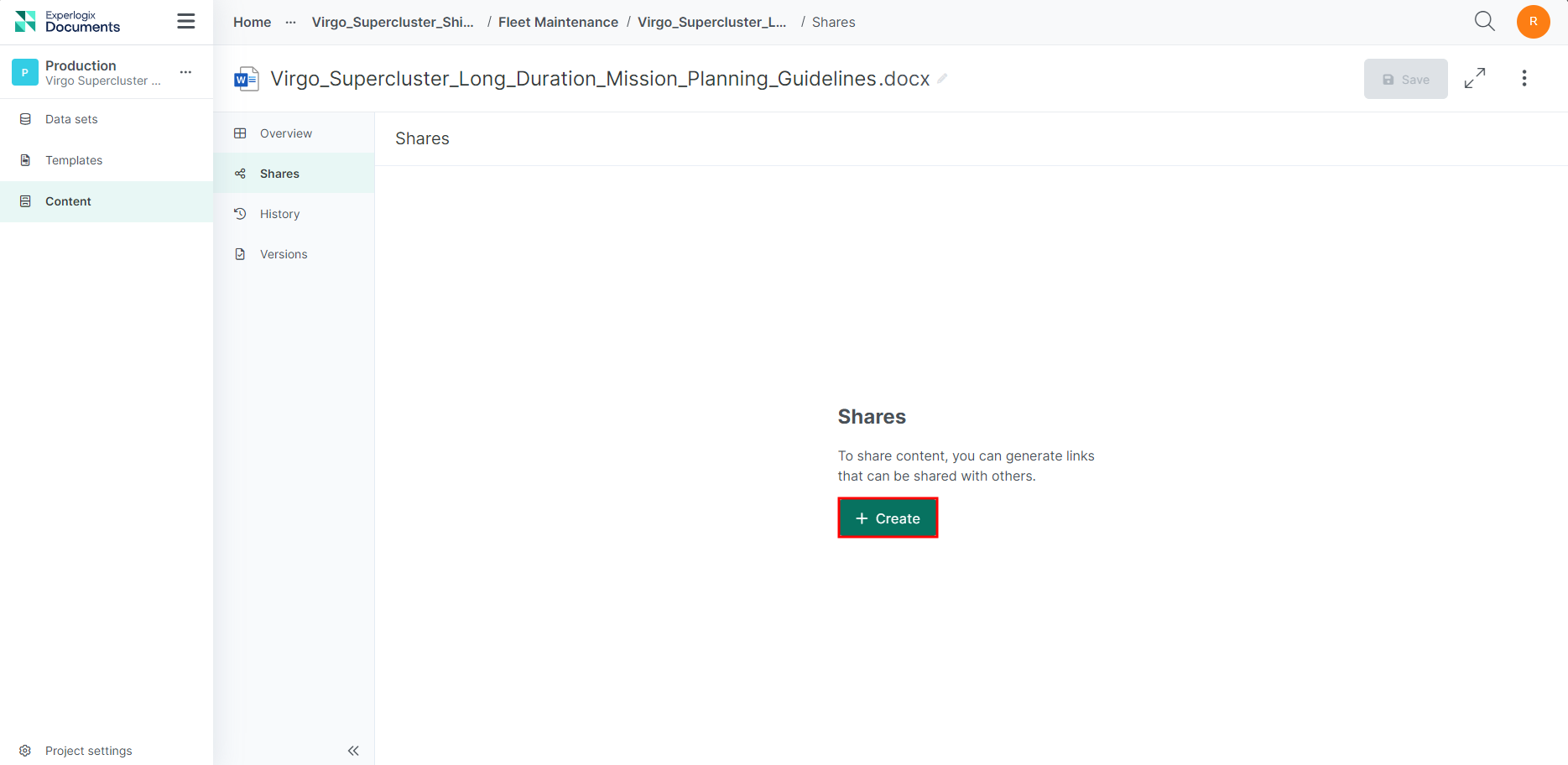
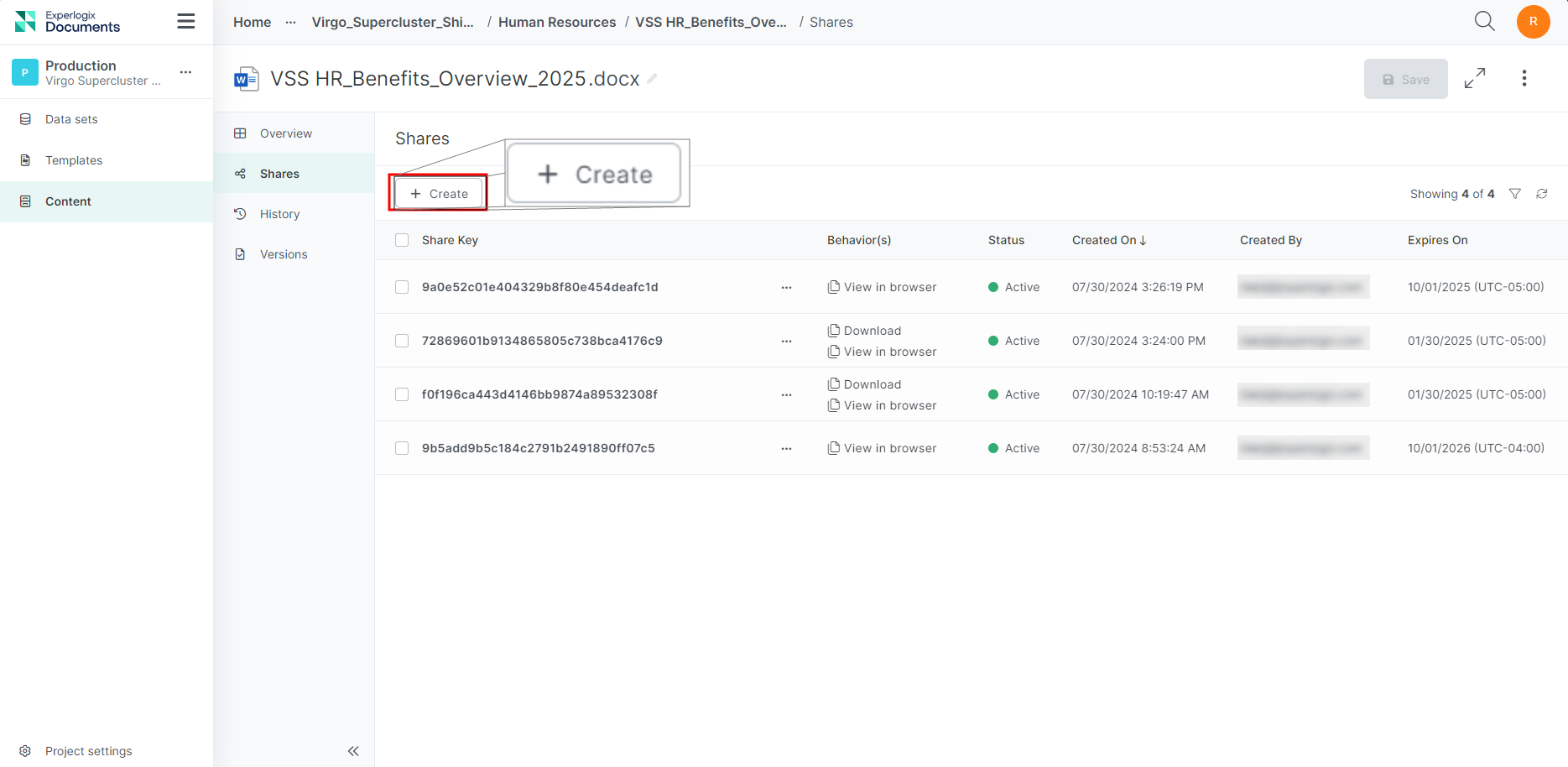
If your Shares tab already contains existing shares, the + Create button is located above your Shares List view.
-
Configure your sharing link.
-
Select View in browser if you want the user to be able to open the file in the browser.
-
Select Download if you want the user to be able to download the file from the link.
If you select both View in browser and Download, the system generates separate links for each action.
-
If you want the link to be permanent, select the Never button under Expiration Date.
-
If you want the link to expire after a certain period, select the Custom button under Expiration Date and set the Date and Time Zone to use to execute the date.
-
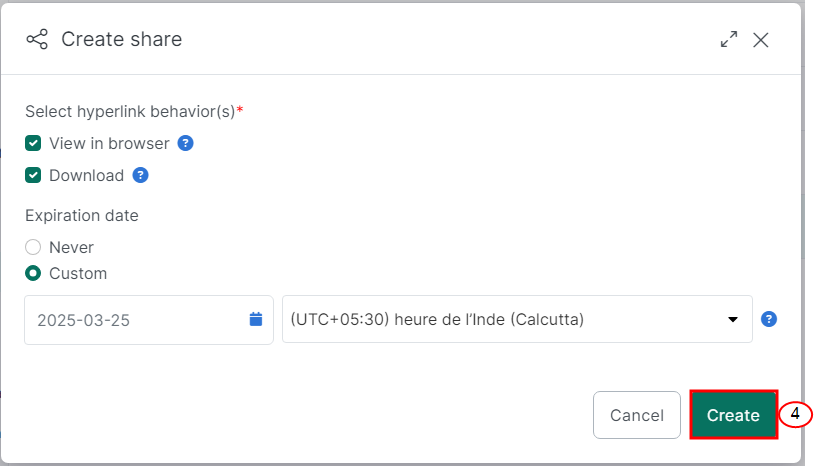
To go along with our Use Case Example: Ensuring Up-to-Date Compliance Information for the Contractor's Team, we've configured as follows
-
View in browser
-
Download
-
Create a permanent hyperlink
-
Select Create.
The Create Share dialog displays with your links ready to copy into other applications. Each share access type has a separate link.
Filtering and Sorting Shares
-
Search / Filter: Select the filter icon above the table to filter by Key, Status (Active, Expired), or Behavior (View in browser, Download).
-
Sorting: By default, shares are sorted by Created on (newest first). You can sort by Status, Created on, and Expires on by selecting the column headers.
Editing a Share Expiration Date
You can modify the expiration date and time zone of an active share. Link behaviors cannot be changed after creation, and expired shares cannot be edited.
-
In the Shares tab, select the ellipsis button (...) for the share (or select the Key name).
-
Select Edit.
-
Adjust the Expiration Date (switch between Never or Custom with a new date and time zone).
-
Select Save.
Deleting Shares (Single & Bulk)
When a share is no longer needed, you can delete it individually or in bulk:
-
To delete a single share: Select the ellipsis button (...) in the share row, select Delete, and confirm.
-
To delete multiple shares:
-
Select the checkboxes next to the shares you want to delete.
-
Select the Delete button in the table header bar.
-
Confirm the deletion in the prompt dialog.
-
Accessing Deleted vs. Expired Links:
-
Deleted Link: If an external user attempts to access a deleted share link, the server returns a 404 Not Found error page, as the link record no longer exists.
-
Expired Link: If an external user accesses a link that has passed its expiration date, the system displays an informative message: "This link has expired. Request the owner of this file to share it again."
Shared Content Analytics
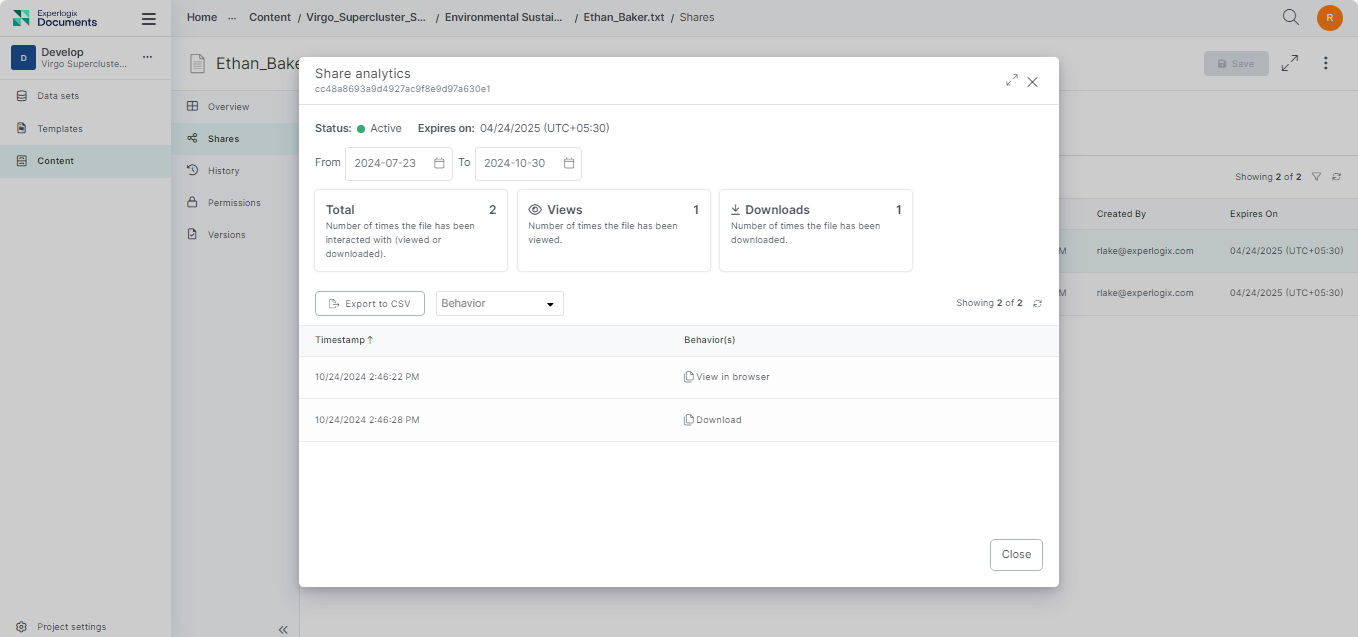
The Share Analytics functionality provides a comprehensive way to monitor and analyze interactions with shared content. It tracks recipient engagement through views and downloads, allowing users to see when and how often their content was accessed, including whether links were opened or downloaded.
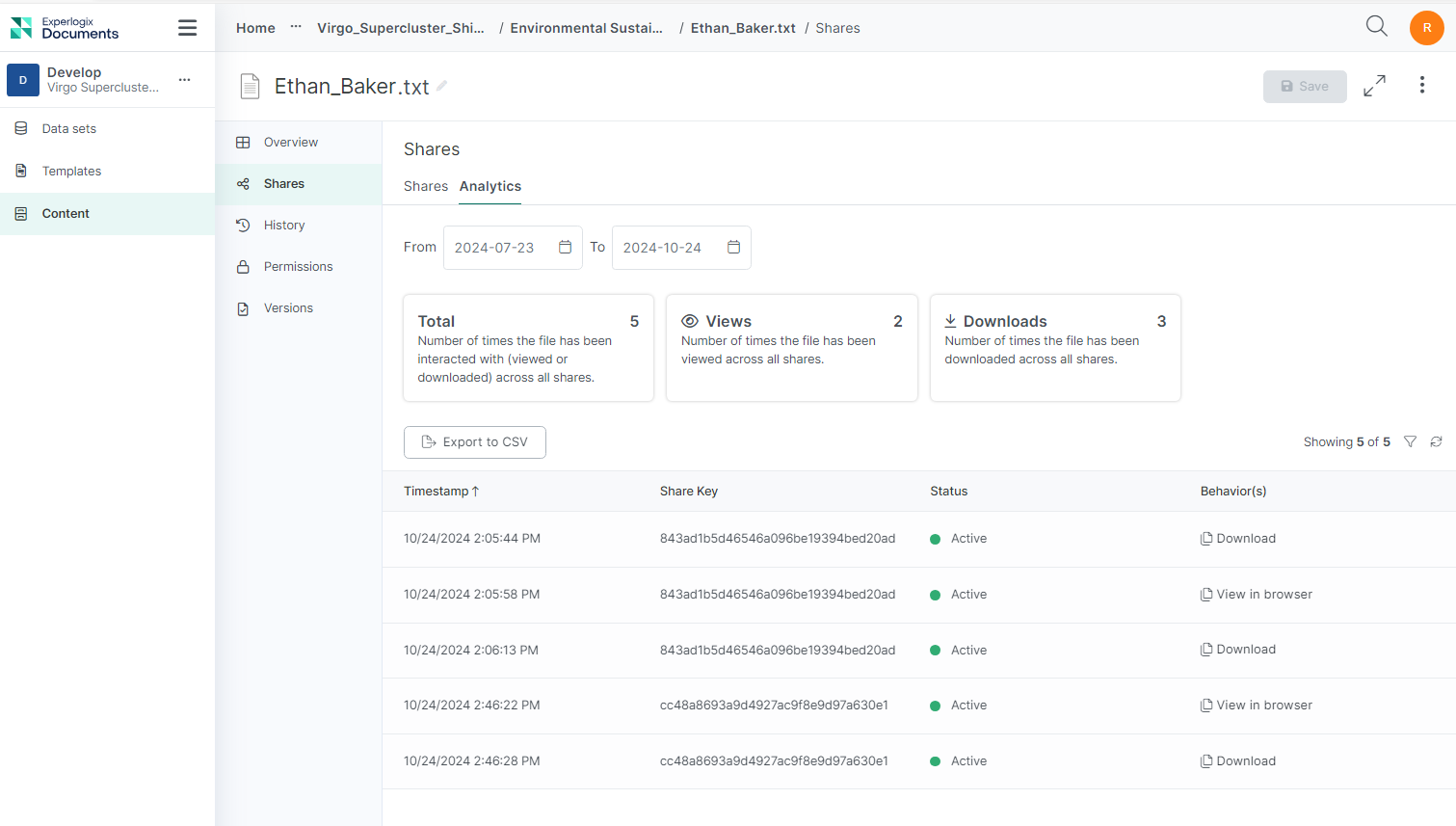
Analytics are available for each file, providing details of all associated shares. Additionally, analysis is available for each particular share to understand its effectiveness.
Shared Content Analytics: Key Fields and Descriptions
|
Field |
Description |
|---|---|
|
Date Range Filter |
Ensures that the analytics report only displays interactions or data within the selected timeframe. |
|
Total Interactions |
Displays the total number of views and downloads for the file across all shares. |
|
File Views |
Displays the number of times the file was viewed. |
|
Downloads |
Displays the number of times the file was downloaded. |
|
Timestamp |
Displays the time of each interaction. |
|
Share Key |
A unique identifier for each share. |
|
Status |
The current status of the share (active or expired). |
|
Behavior |
The type of interaction (view or download). |
|
Export to CSV |
Allows users to download analytics data for further analysis and reporting. |
Accessing the Analytics Tab for a File
-
Select a file in the Content Manager List view.
-
Select the ellipsis button.
-
Select Details.
-
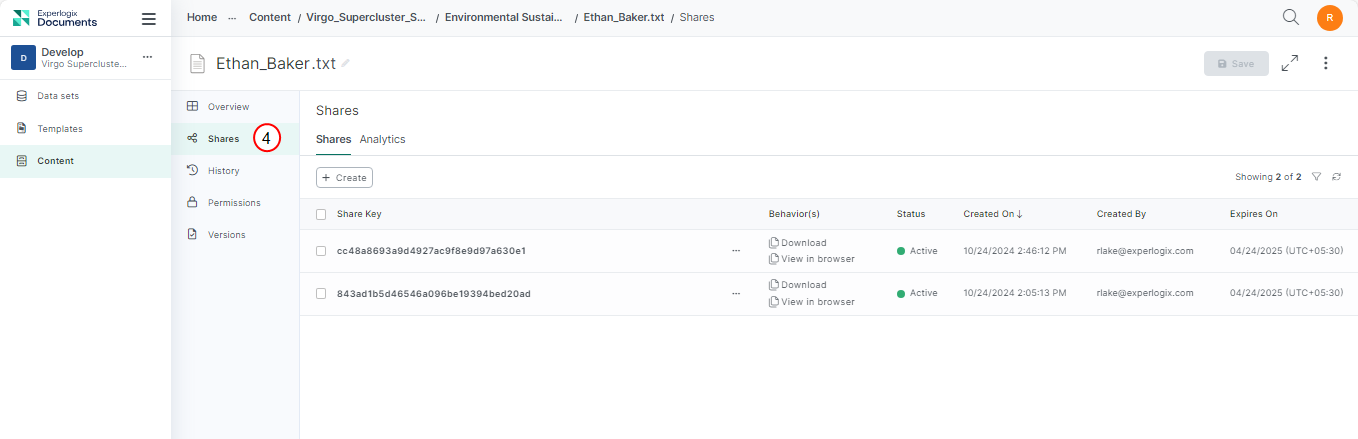
Select the Shares tab.
-
Select the Analytics tab.
The Analytics tab for a file displays.
Accessing the Analytics Tab for a Share
-
Select a file in the Content Manager List view.
-
Select the ellipsis button.
-
Select Details.
-
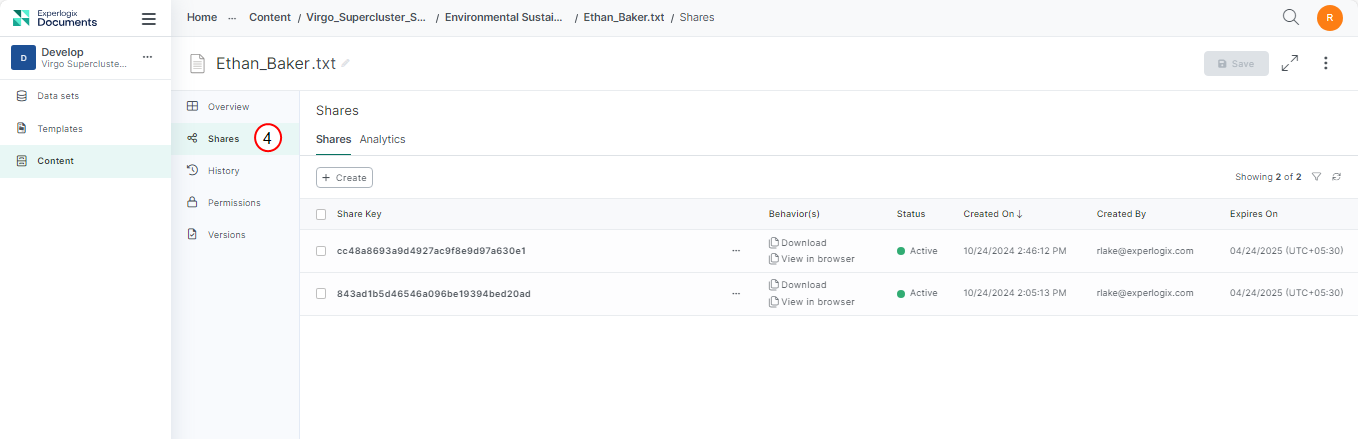
Select the Shares tab.
-
Select a share in the Shares List view.
-
Select the ellipsis button.
-
Select Analytics.
The Analytics tab of a share displays.