
Content Manager helps users track document activity and manage file versions. The History tab provides an audit trail of an item, recording who created, modified, copied, or moved it along with corresponding timestamps. For files, the Versions tab lists all saved iterations, enabling users to review previous states and restore earlier versions when needed.
Permissions
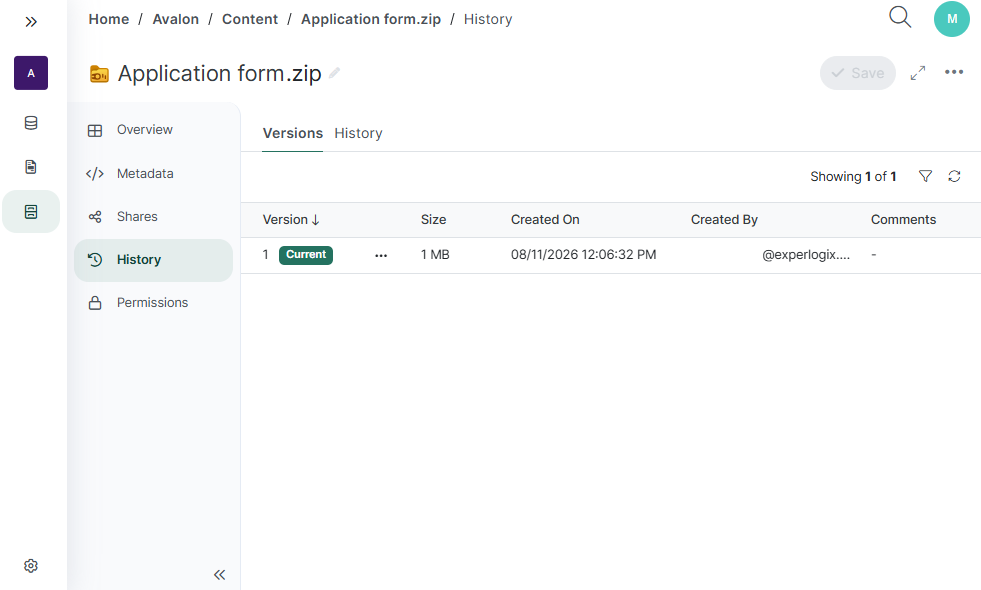
Access to the history log, version records, and version management actions (such as restoring previous versions or editing version comments) is governed by role-based permissions in the project. If you are unable to view history or execute specific version actions, ensure that you have the appropriate permissions assigned to your user account or group.
This is the primary workspace where you can filter version lists, view version comments, and restore earlier document versions.
Understanding the History Tab
The History tab on the Details page tracks item modifications and saved states:
-
History: Displays a chronological event log tracking who created, updated, copied, or moved the item.
-
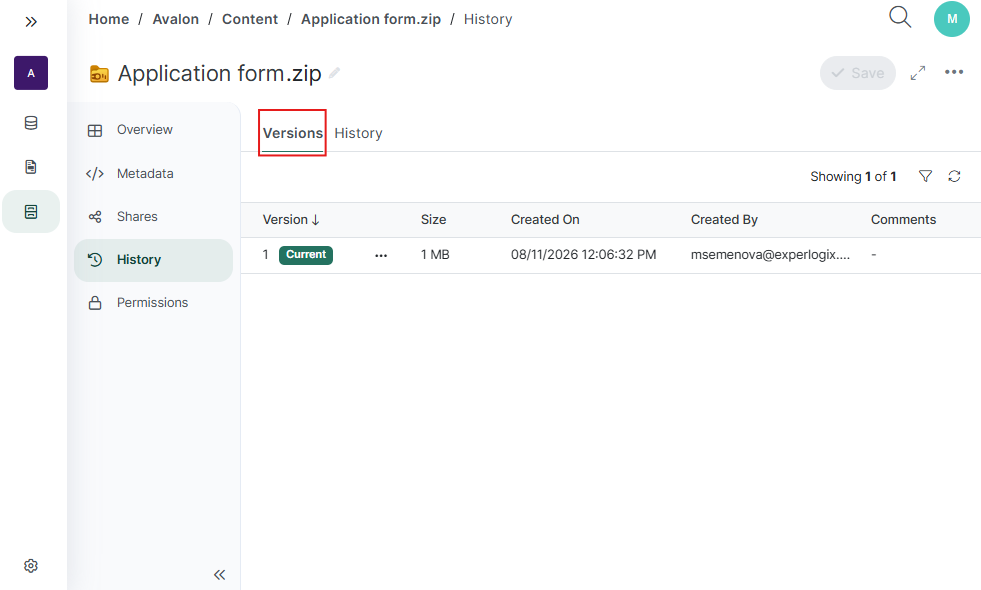
Versions: Displays saved versions of the file, including version numbers, file sizes, creation timestamps, author details, and comments, with options to restore earlier versions.
Note: The Versions sub-tab is available for files only.
Managing File Versions
Whenever a file is updated or edited, a new version is created automatically, with the most recent version labeled with a Current badge.
Viewing and Filtering Versions
-
Open the file's Details page (Content Manager > File's ellipsis menu (...) > Details).
-
Select the History tab, then ensure the Versions sub-tab is selected.
-
To find a specific version, enter the version number into the Filter versions search box above the table.
Restoring a Previous Version
You can roll back a file to any previous version in its history:
-
In the Versions table, locate the version you want to restore.
-
Select the ellipsis button (...) next to that version.
-
Select Restore.
-
A notification confirms: "Version restored."
Note: Restoring creates a brand new current version at the top of the list with the exact content and properties of the selected historical version.
Adding or Editing Version Comments
You can attach comments to versions to explain why a change was made:
-
In the Versions table, locate the version row.
-
Select the ellipsis button (...) on that row.
-
Select Edit comment (or View comment if viewing another user's comment).
-
Enter or update your text in the comment dialog and select Save.
-
The comment will now appear in the Comments column for that version.
Logged Activity Events
Activity events are organized chronologically, displaying the acting user's avatar, username, timestamp, and a clear description of the action:
|
Event Type |
Item Type |
Description & Example Log |
|---|---|---|
|
Creation |
File & Folder |
Logged when a user creates a new folder or uploads a file into Content Manager. |
|
Update |
File & Folder |
Logged when properties or metadata are modified (such as editing descriptions, renaming, or copying). |
|
Move |
File & Folder |
Logged when an item is moved to another folder, recording both source and destination paths. |