
Users with sufficient permissions can invite users at multiple levels.
Inviting Administrators to an Application
Users with sufficient permissions can invite users to the Application as Application Administrators.
At the Application level, you can only invite users as Application Administrators.
-
In the Application Settings Users Tab, select the + Invite Administrators button.
The Invite Administrators window displays.
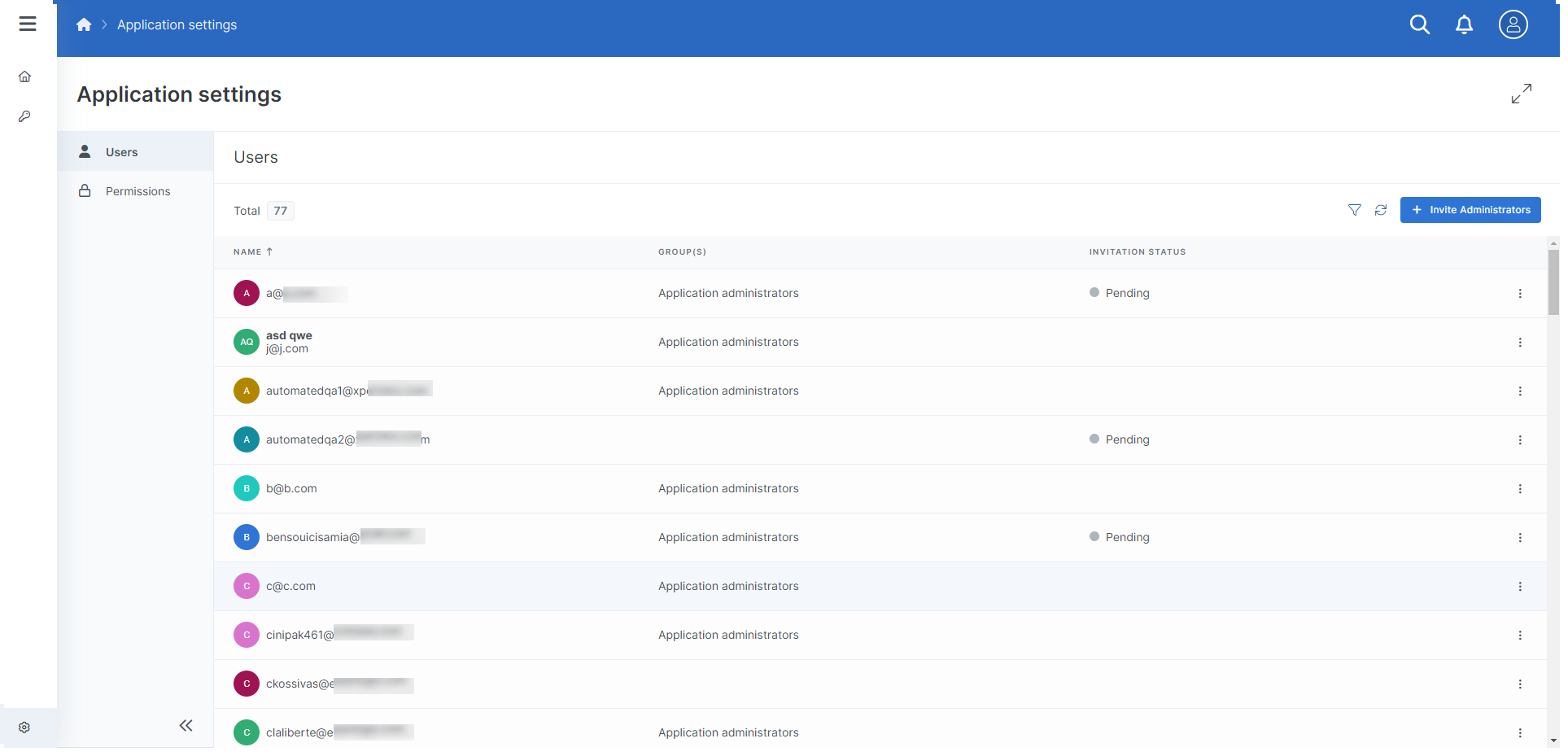
When adding user e-mails, separate addresses using commas, semicolons, and spaces. The User(s) e-mail list field supports both typed and pasted responses. Use the Enter or Tab key to add additional e-mails to your list.
-
In the User(s) email list field, enter the e-mails for the user(s) you wish to invite.
-
In the Language drop-down menu, select a language for the user.
-
Select the Send invite(s) button.
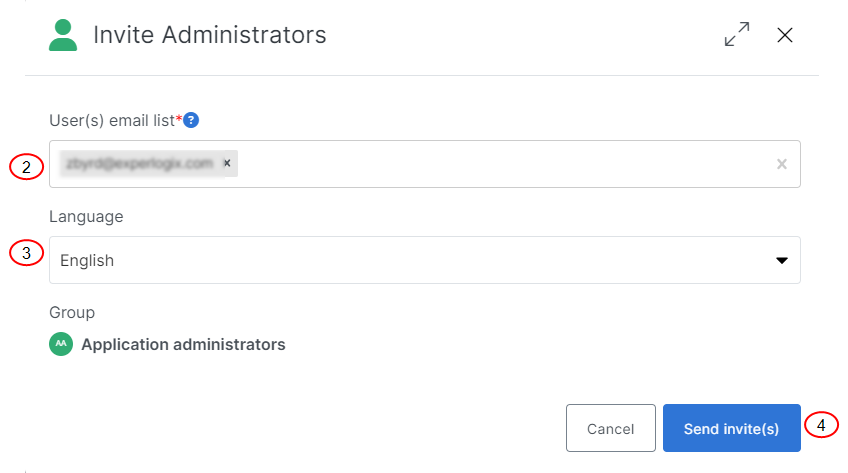
The confirmation message "Users invitations have been sent" displays. The invited user's Invitation Status displays in the Users List view as pending.
The invited users receive an email containing a link to register.
Inviting Users to a Organization
Users with sufficient permissions can invite users to the organization as Organization Administrator.
At the Organization level, you can only invite users as Organization Administrators. See Permissions for more information.
-
In the Organization Users Tab, select the + Invite Administrators button.
The Invite Administrators window displays.
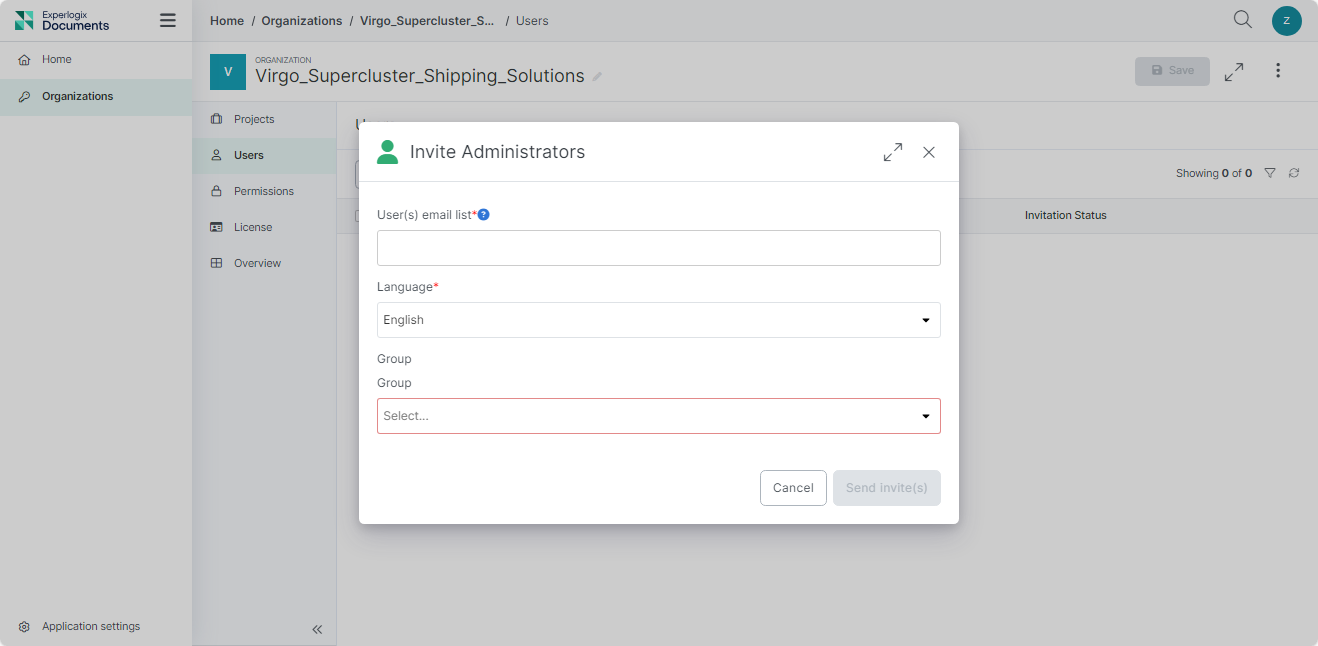
When adding user e-mails, separate addresses using commas, semicolons, and spaces. The User(s) e-mail list field supports both typed and pasted responses. Use the Enter or Tab key to add additional e-mails to your list.
-
In the User(s) email list, input the e-mails for the user(s) you wish to invite.
-
In the Language drop-down menu, select a language for the user.
The selected language defines the language of the email invitation, and the link in the invitation loads the registration page in the selected language. The user can change the language during the registration process.
-
Select the Send invite(s) button.
The confirmation message "Users invitations sent" displays. The invited user(s) display in the Users List view as pending.
Inviting Users to a Project
Users with sufficient permissions can invite additional users to the project via email.
A user can only be invited once within the same scope (application, organization, project.) If you wish to invite a user with a different access level, you should instead add the user to a different group of permissions via the Permissions tab.
Example: Jean Yannick has been invited as a project owner to project ABC, and the invitation status is pending. If you invite again Jean Yannick as Project contributor, the invitation will fail to send because Jean Yannick already exists. You should instead go to Permissions tab and add Jean Yannick to the Project Contributors group.
To invite a user:
-
Select the + Invite Users button.
The Invite users window displays.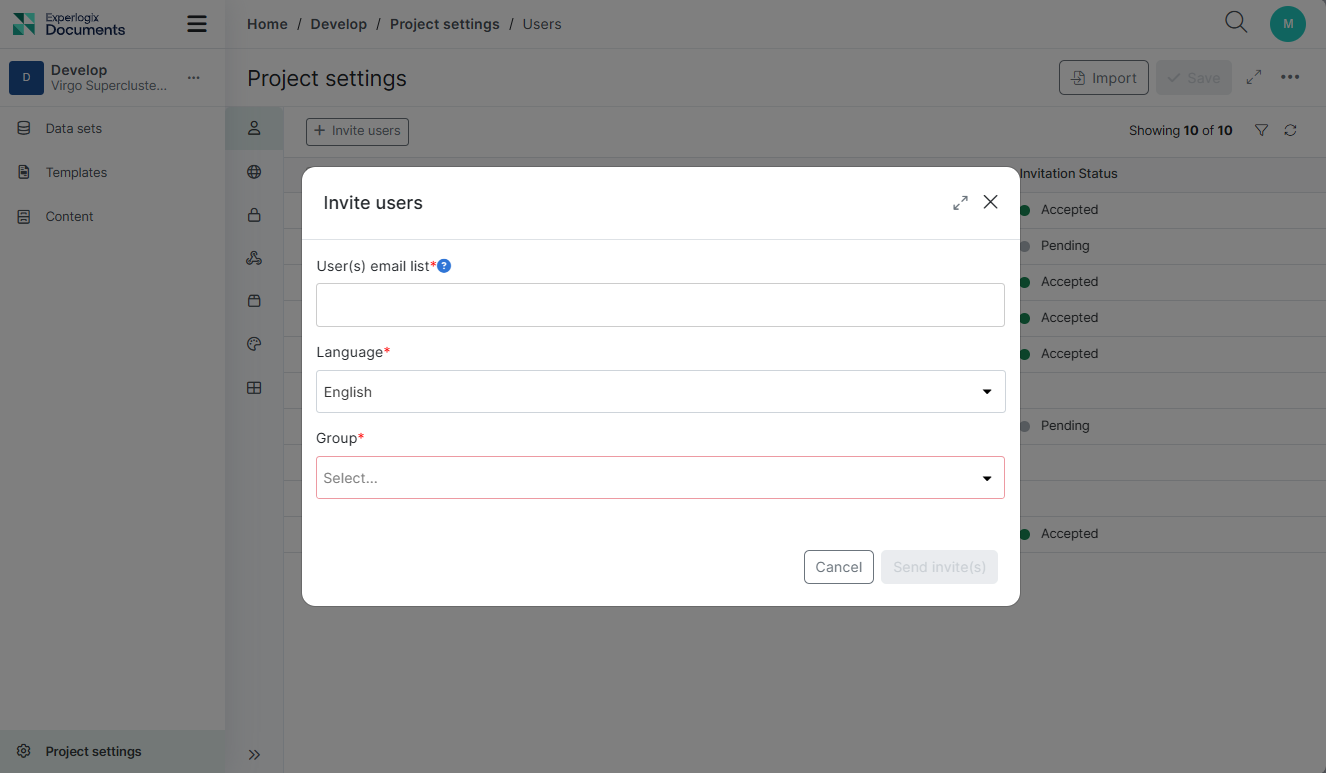
When adding user emails you can separate addresses via commas, semi-colons and spaces. The User(s) email list field supports both types and pasted responses. Use the Enter or Tab key to add emails to your list.
-
In the User(s) email list field, input the users you wish to add.
-
(Optional) In the Language drop-down menu, select a language for the user.
-
In the Group drop-down menu, select a group for the user(s).
-
Select the Send invite(s) button.
The confirmation message "Users invitations sent" displays.
The invited user(s) display in the Users List view as pending.