
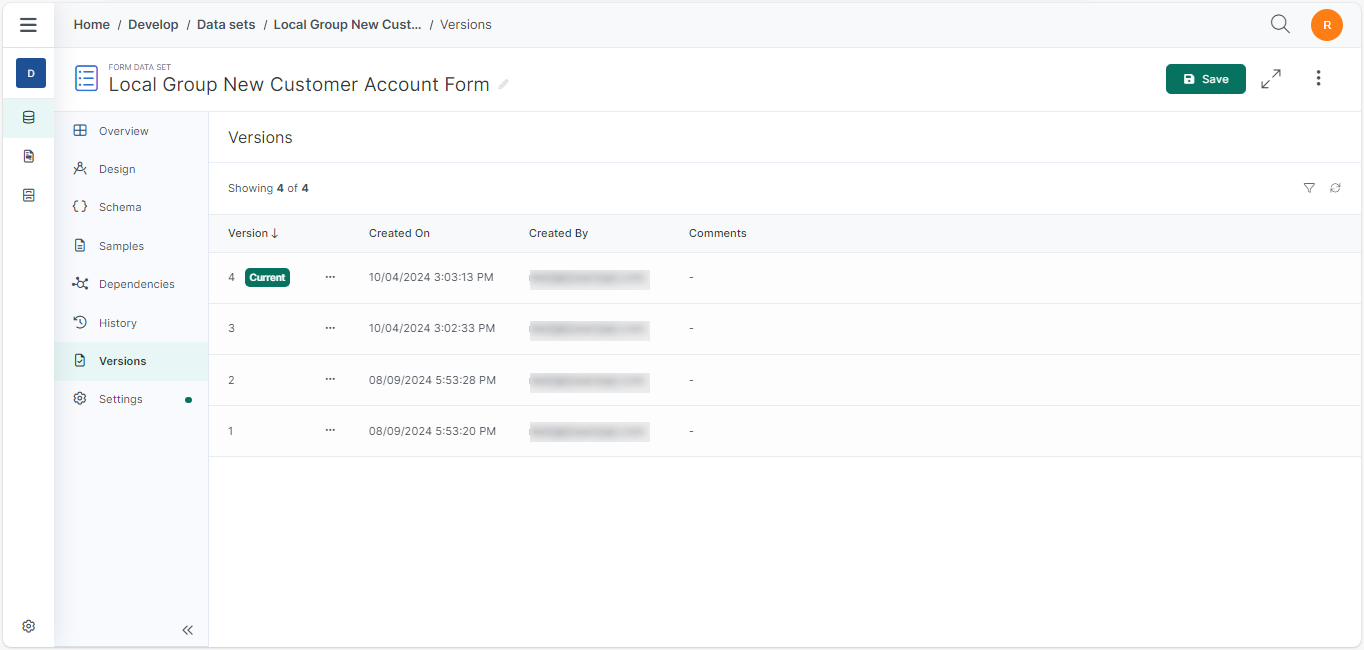
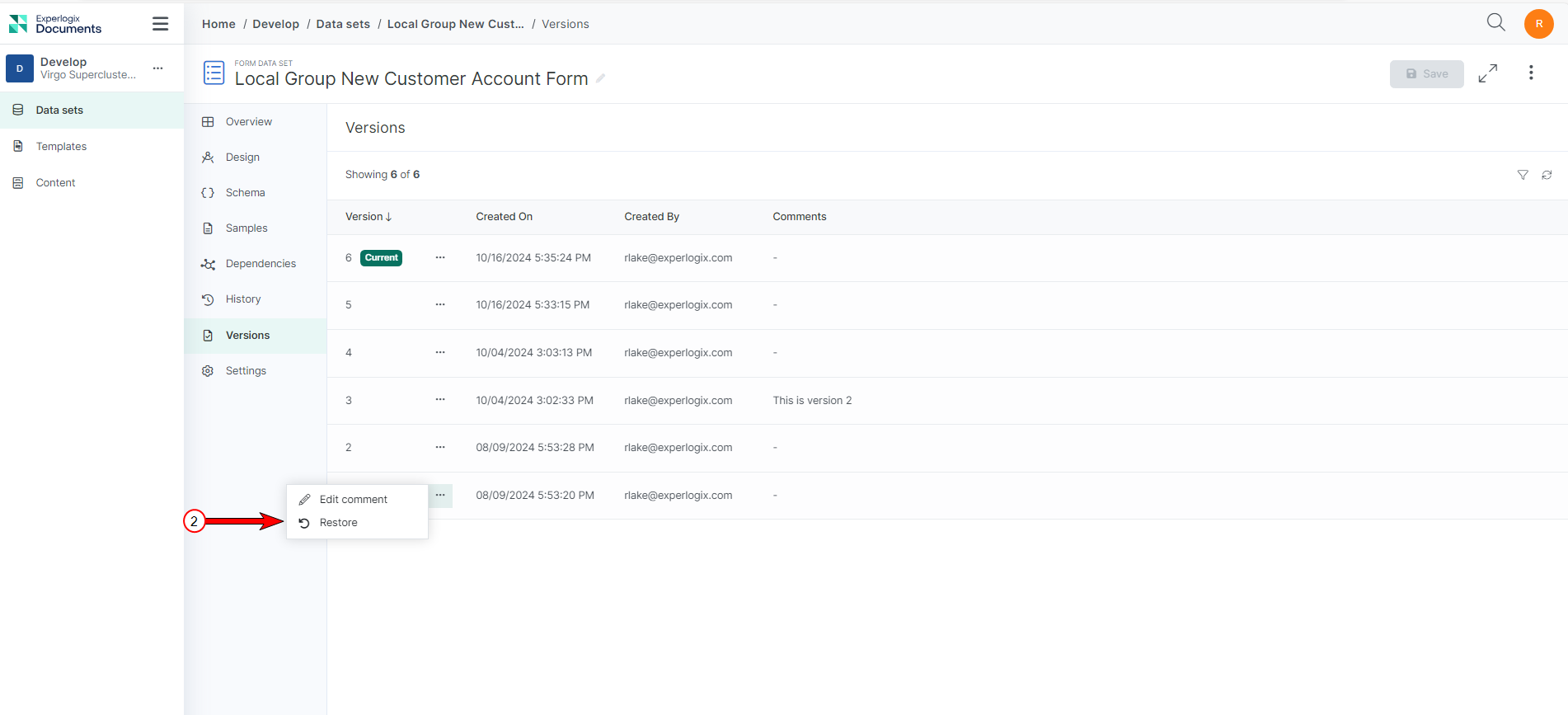
The Data Sets Versions Tab provides a log of all the versions for a given Data Set. A new version is created every time the data set is altered and saved.
Data Sets Version Page Fields
|
Field |
Description |
|---|---|
|
Version |
Displays the Version number of the Data Set. |
|
Created On |
Displays the date the version was completed. The system displays the time and date to match the viewer's local time zone and formatting. |
|
Created By |
Displays the user who made the change. |
|
Comments |
Displays any comments written in the Comment field. |
Add Comments to a Specific Version
You can add a comment to a version. By using the optional comments you can provide context for each data set version.
-
In the Data Set Version tab, select the ellipsis corresponding to the version you want to add a comment to.
-
Select Edit comment.
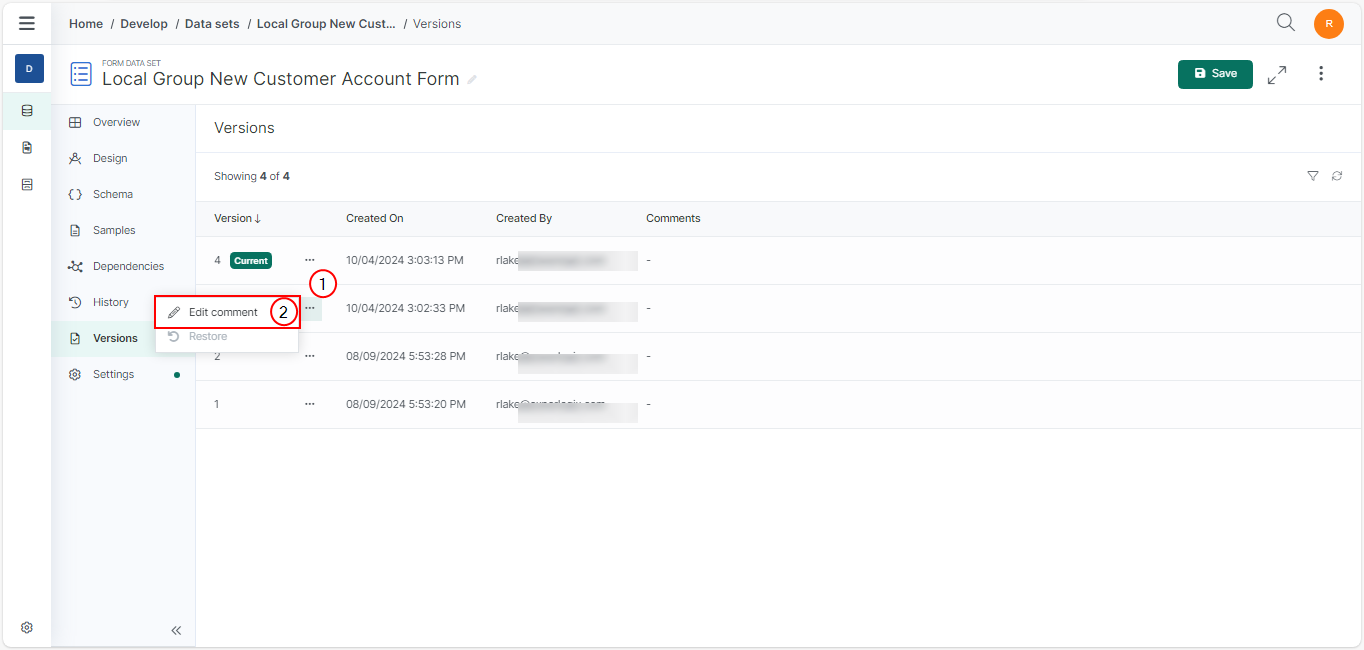
The Edit comment dialog box displays.
Editing a comment can only be done by the comment author.
-
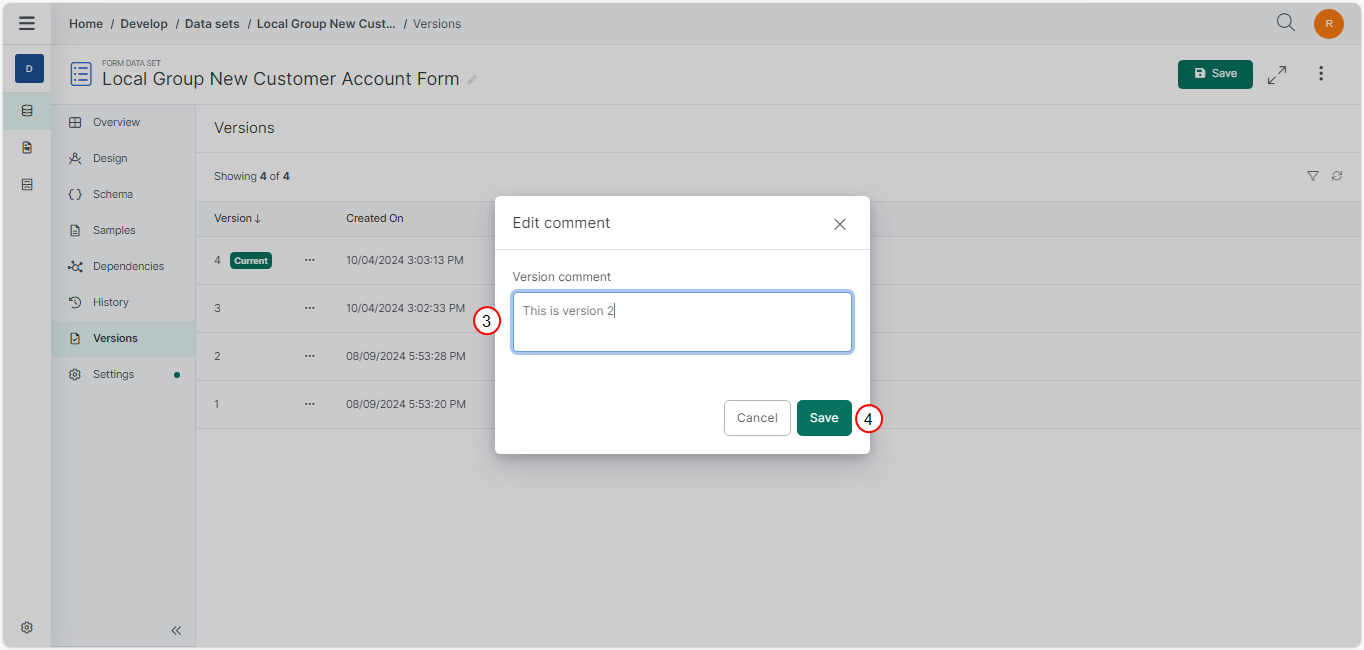
In the Edit comment dialog box, enter a comment in the Comment field.
-
Select Save.
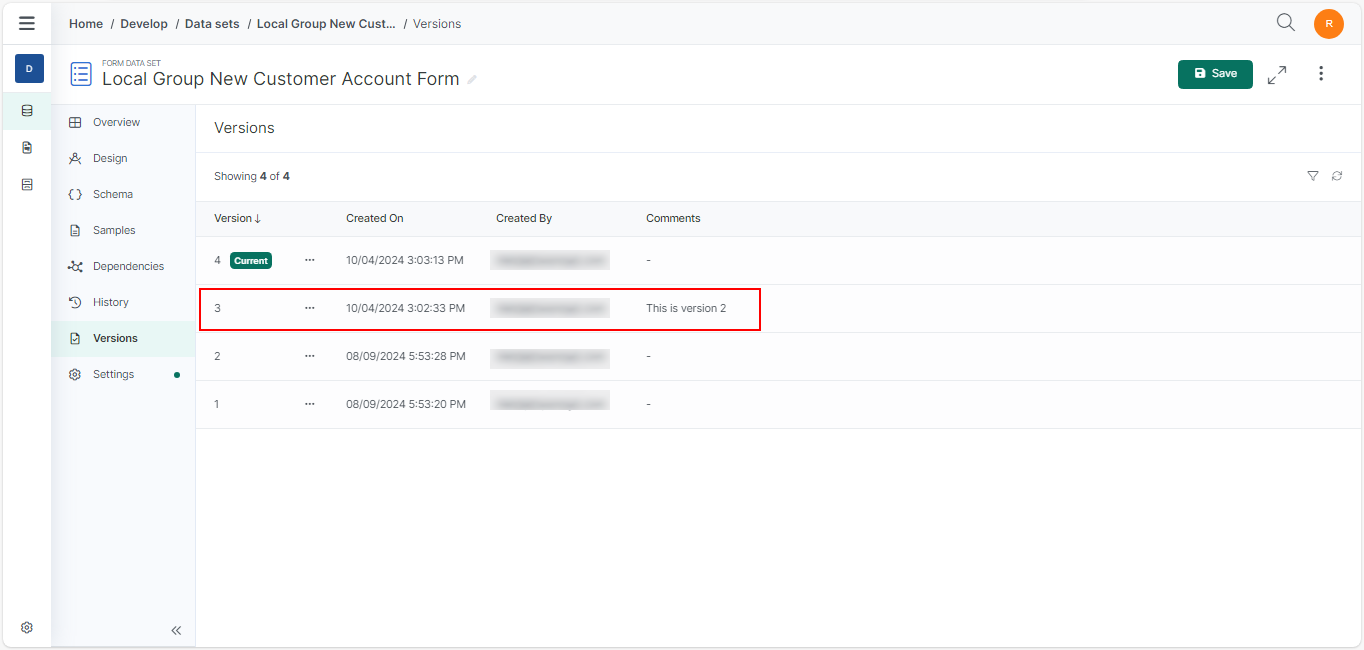
The new comment is displayed under the Comments column.
Restore a Previous Version
If you want to use a previous version of your Data Set, you can choose that Data Set version and restore it.
-
Select the ellipsis corresponding to the version you want to restore in the Data Set Version tab.
-
Select Restore.
“Version restored” message displays. The old version is now your new current version.