
Login Providers
Experlogix Documents allows organization administrators to control how users authenticate when accessing the Experlogix Documents SaaS application. Administrators can configure approved login providers, enforce corporate identity standards, disable email/password authentication, and streamline the sign-in experience.
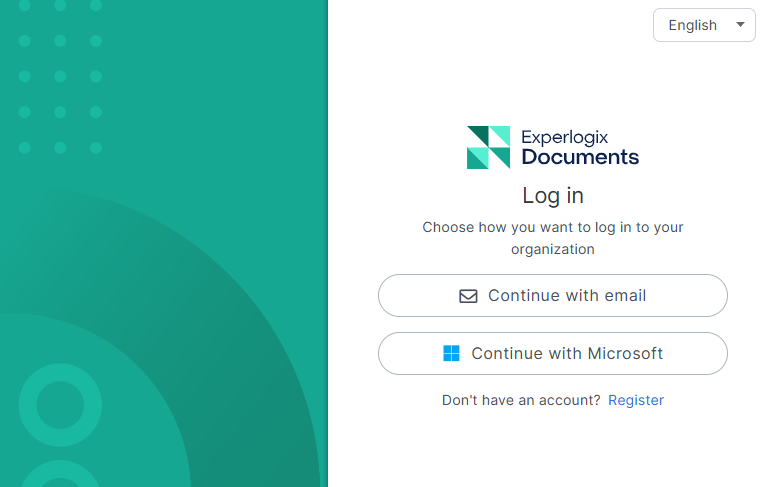
Note: Currently, Microsoft is the only supported external identity provider. Additional providers will be introduced in future updates.
When Experlogix Documents introduces support for a new external provider, it will automatically be enabled for organizations using the default settings. However, if you have already customized your login providers, the new provider will be disabled by default to respect your existing security restrictions.
Permissions
Organization Administrators, or users granted the appropriate organization-level management permissions, can view, enable, and disable login providers. These settings are managed exclusively at the organization level to ensure centralized security governance.
Visit Organization Permissions and Permissions pages to learn more about permissions in Experlogix Documents.
Configuring Login Providers
By default, if an organization has no custom configuration, all supported login providers (Email and external providers) are enabled.
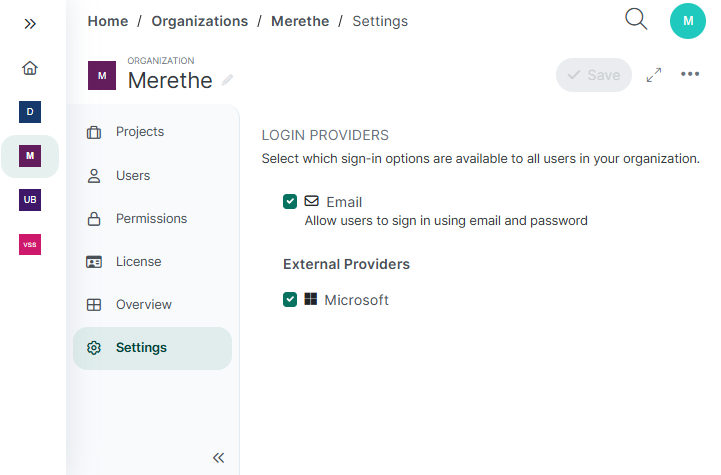
Email - Allows users to sign in using email and password.
External Providers - Allow users to sign in using their existing third-party accounts (such as Microsoft).
To enforce a specific authentication method:
-
Navigate to your Organization > Settings.
-
Under Login Providers configuration enable or disable providers using the available checkboxes.
Note: At least one provider must remain enabled to save your configuration.
Session Duration
To provide a seamless experience, your active session is securely stored in your browser. You will remain signed in until you manually select “Sign Out” from your profile menu, or until you clear your browser's cookies and site data.
Note: If your company uses a corporate identity provider like Microsoft, your active session may also be managed by your corporate IT policies, which might require you to re-authenticate periodically.