
The Experlogix Documents Organization Projects Tab displays all projects within an organization. Users with sufficient permissions can also create additional projects via the Organization Projects Tab.
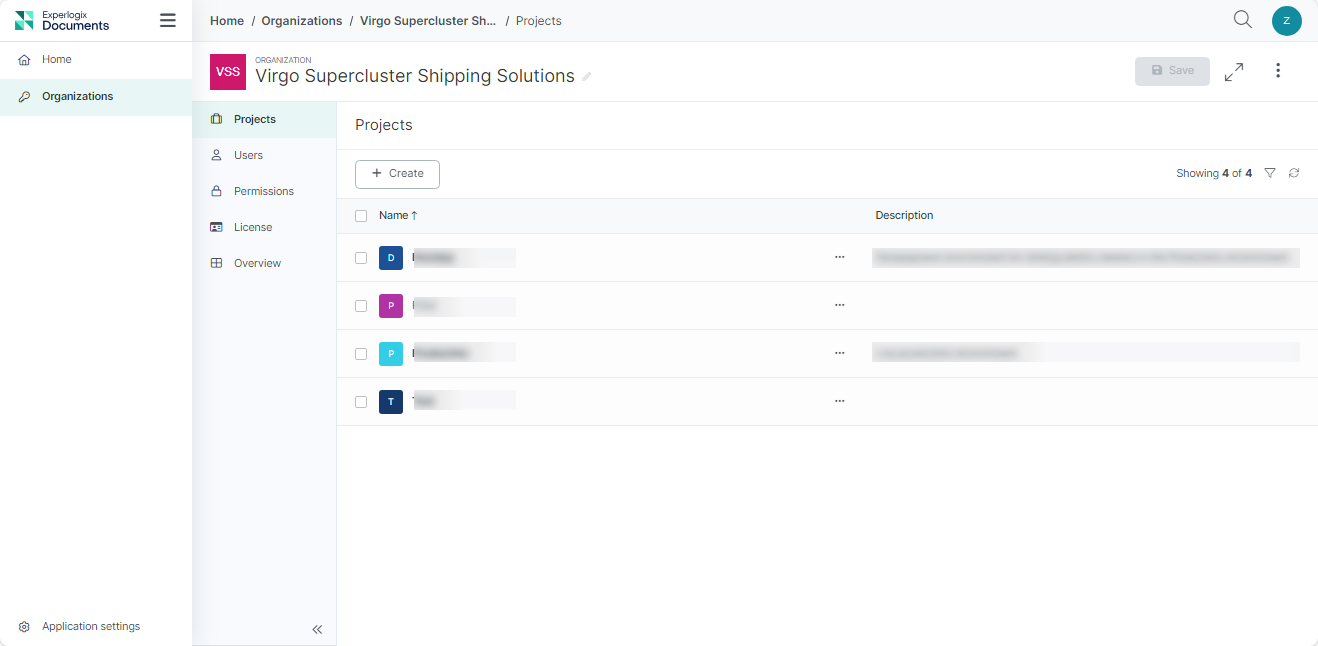
Organization Projects Tab Functions
|
Field |
Description |
|---|---|
|
Name |
Displays the name of the project. This is a required field. |
|
Description |
Displays the user-defined description for the project. |
|
Options button |
Displays the following additional options for the project:
|
Procedures
Creating a project
-
Click the + Create button.
The Create project window displays.
-
In the Name field, input the name of your new project.
-
(Optional) In the Description field, enter an informative description for the project.
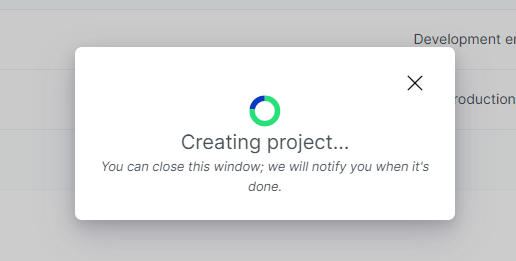
The Creating project window displays while the system creates your project.
Your new project displays in the Projects List view.
You have successfully created your new project and can begin configuring it.